Everhour is all-in-one time tracking software built for teams. This quick tour walks you through every major section of the app — from the moment you log your first hour all the way through to sending a client invoice — so you know exactly where to go and what to do from day one. Whether you're an individual freelancer or managing a team of fifty, this overview gives you a clear mental map of how everything fits together.
Time & Timeline pages
The Time page is your personal hub for logging and reviewing hours. You can start a live timer with a single click, choosing a project and task before the clock begins, or add time manually after the fact by entering a start time, end time, or a fixed duration. The day-by-day list view lets you annotate each entry with a note — useful for billing clarity and client communication. Switching to the Timesheet view gives you a weekly grid where all your projects and tasks appear as rows, making it easy to fill in hours for an entire week at once. If you prefer mobile, the Everhour browser extension and mobile apps let you do all the same things without opening the web app.
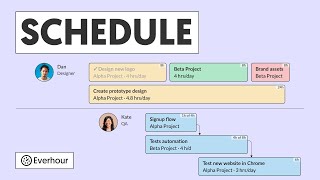
The Timeline is the team-level complement to the Time page. It presents a Gantt-style visual of who is working on what across any date range you choose. Managers can see, at a glance, which team members are overloaded and which have bandwidth available. You can filter the Timeline by project or by person, zoom in to a single week or zoom out to see a whole quarter, and use it to spot scheduling conflicts before they become delivery problems. The Timeline also reflects planned assignments from connected project management tools, so if a task is assigned in Asana or ClickUp it will appear here automatically.
Projects & Clients
The Projects section is your central registry for every piece of work the team is doing. Projects flow in automatically from any connected integration — Asana, Trello, Jira, ClickUp, Monday, Notion, and more — or you can create internal projects directly in Everhour for work that doesn't live in a PM tool. Inside each project you can set a budget in hours or money, configure billing rates, define task-level time estimates, and organize work into sections or milestones. The project detail view shows a live comparison of estimated versus actual hours, so you can tell at any moment whether you're on track or running over scope.
Clients sit above projects in the hierarchy. You can group multiple projects under a single client, set a default billing rate or currency for that client, and view aggregated totals of billable and unbilled hours across all their projects. This structure makes it straightforward to answer a client's question about how many hours have been spent this month — you just open their client card and the answer is right there.
Reports & Invoices
The Reports section transforms raw time data into actionable information. You can build reports filtered by project, team member, client, date range, tag, or billing status, and group the results in whatever way makes sense for your audience — a summary grouped by project for your weekly standup, or a detailed breakdown by person for payroll. Once you've built a report you use regularly, you can save it as a template and even schedule it to be emailed automatically to stakeholders on a recurring basis. Reports export to CSV for further analysis in a spreadsheet or to PDF for sharing externally.
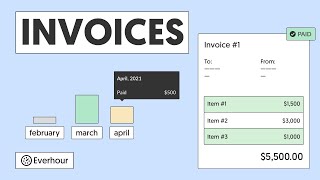
The Invoices section is where billable time turns into revenue. Select a client and a billing period, and Everhour pulls in all unbilled time entries and expenses automatically, converting them into invoice line items using your configured rates. You can edit line items, add discounts or taxes, attach your logo, and customize payment terms before downloading the invoice as a PDF or pushing it directly to Xero or QuickBooks. Once an invoice is paid, you mark it as such inside Everhour — or the status syncs back automatically if you're using an accounting integration.
The Expenses section rounds out the financial picture by letting team members log project costs beyond time — software licenses, travel, contractor fees, hardware, and anything else that should count against a project budget. Each expense entry captures the amount, date, category, and billable status. Billable expenses flow into invoices alongside tracked hours, so clients receive a complete picture of what was spent on their behalf.