


What Is Asana? A Guide to the Project Management Tool
Asana is a work management platform that helps teams organize projects, assign tasks, coordinate workflows, and track progress in one place. It gives teams a shared view of responsibilities and deadlines, making it easier to coordinate work across people and departments.
In this guide, we’ll explain what Asana is used for, how its key features work, what its plans offer, and where it may fall short. We’ll also look at who can benefit most from Asana and which alternatives are worth considering.
TL;DR: Key Takeaways
- Asana is a work management tool for organizing tasks, projects, deadlines, and team collaboration.
- Its core features include task assignments, multiple project views, workflow automation, reporting, and integrations.
- Asana supports different use cases, from marketing campaigns and product launches to recurring team processes.
- Pricing and feature availability vary by plan, so teams should compare current options before committing.
- You may need to use Asana integrations for specialized needs, such as detailed time tracking, project budgeting, or connecting work across other tools.
What Is Asana?
Asana is a cloud-based work management platform that helps teams plan, organize, and coordinate work from initial requests to completed projects. Teams can create projects, break them into tasks and subtasks, assign owners, set deadlines, and monitor progress through different views.
Instead of managing work across scattered spreadsheets, email threads, and chat messages, teams can use Asana as a shared workspace for task details, project discussions, files, and status updates.
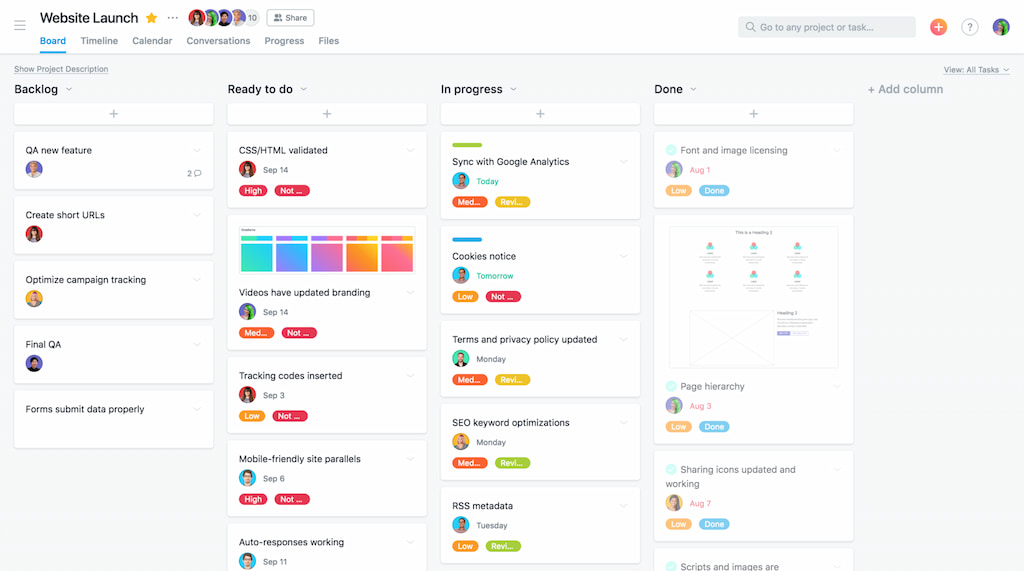
Asana is used by teams across marketing, product development, operations, IT, and other functions. For example, a marketing team can use it to coordinate a product launch, with separate tasks for content creation, design, approvals, and publication. Each task has an owner and deadline, while the overall project provides visibility into progress and outstanding work.
Asana is more than a to-do list: it connects individual tasks to larger projects and oerganizational goals. Its automation and reporting features can also help teams standardize recurring processes and identify work that needs attention.
What Is Asana Used For?
Asana helps teams coordinate work that involves multiple tasks, owners, and deadlines. It can support both one-off projects and recurring workflows, from managing a product launch to handling employee onboarding.
Common use cases include:
- Project management: Break projects into tasks, assign responsibilities, set deadlines, and track milestones.
- Marketing and content planning: Coordinate campaigns, editorial calendars, creative briefs, reviews, and publishing schedules.
- Product and software development: Organize feature requests, launches, cross-functional dependencies, and handoffs between teams.
- Team operations: Standardize recurring processes such as onboarding, procurement, and internal requests.
- Cross-functional collaboration: Give teams a shared view of responsibilities and progress when work spans multiple departments.
- Personal task management: Organize individual priorities and deadlines alongside team projects.
For example, a team launching a new website could create an Asana project with tasks for copywriting, design, development, testing, and launch. Each task would have an owner and deadline, while dependencies would show which tasks must be completed before others can begin.
Asana is most useful when work requires coordination and visibility beyond a simple personal to-do list. For straightforward tasks with few dependencies, a lighter-weight task manager may be sufficient.
Key Features of Asana
Asana combines task management, project planning, collaboration, automation, and reporting. The features available to a team depend on its subscription plan.
Tasks and subtasks
Tasks are the basic units of work in Asana. Each task can have an assignee, due date, description, comments, attachments, and other details. Subtasks help break larger assignments into smaller steps with their own owners and deadlines.
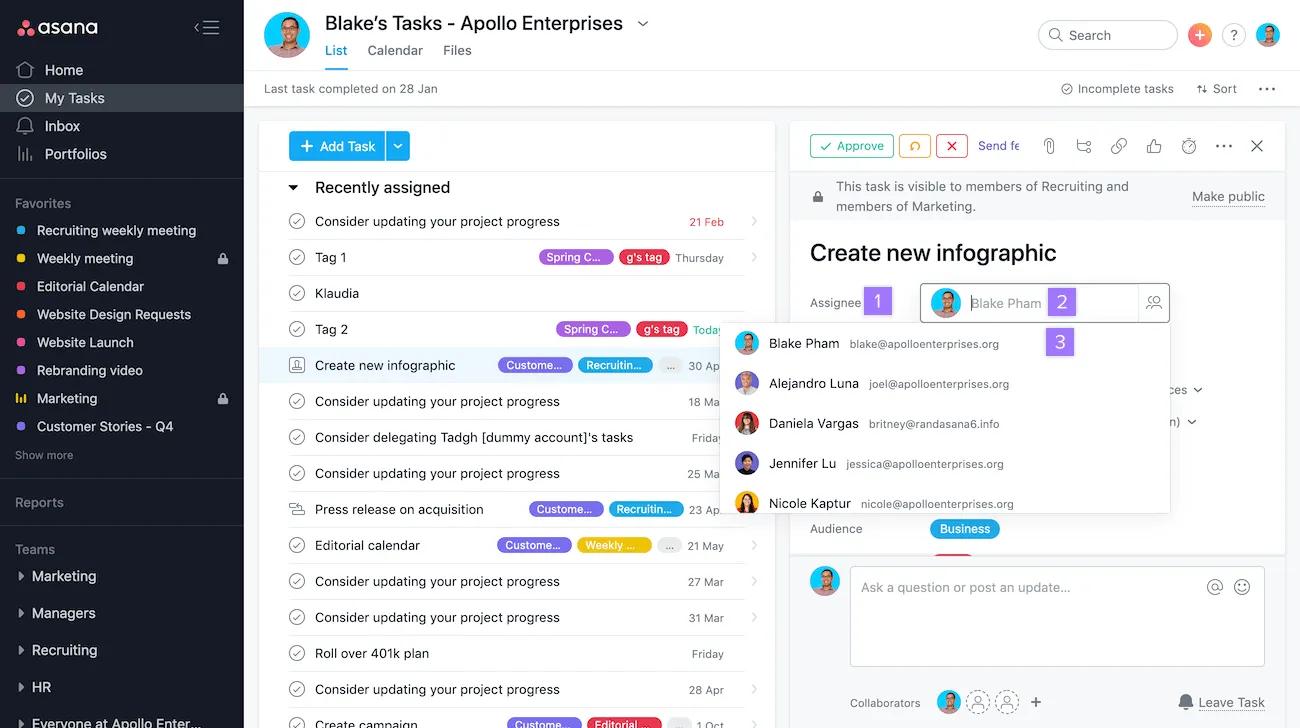
For example, a task called “Publish a blog post” could include subtasks for drafting, editing, creating visuals, and uploading the final article. This makes responsibilities clearer without requiring a separate project for every small step.
Project views
Asana offers several ways to organize and visualize the same project:
- List: Display tasks in rows, making it easy to scan assignments, deadlines, and statuses.
- Board: Arrange tasks in columns to represent workflow stages, such as To do, In progress, and Done.
- Calendar: See tasks and deadlines across a calendar.
- Timeline and Gantt: Plan schedules, visualize task dependencies, and identify potential delays. Availability depends on the plan.
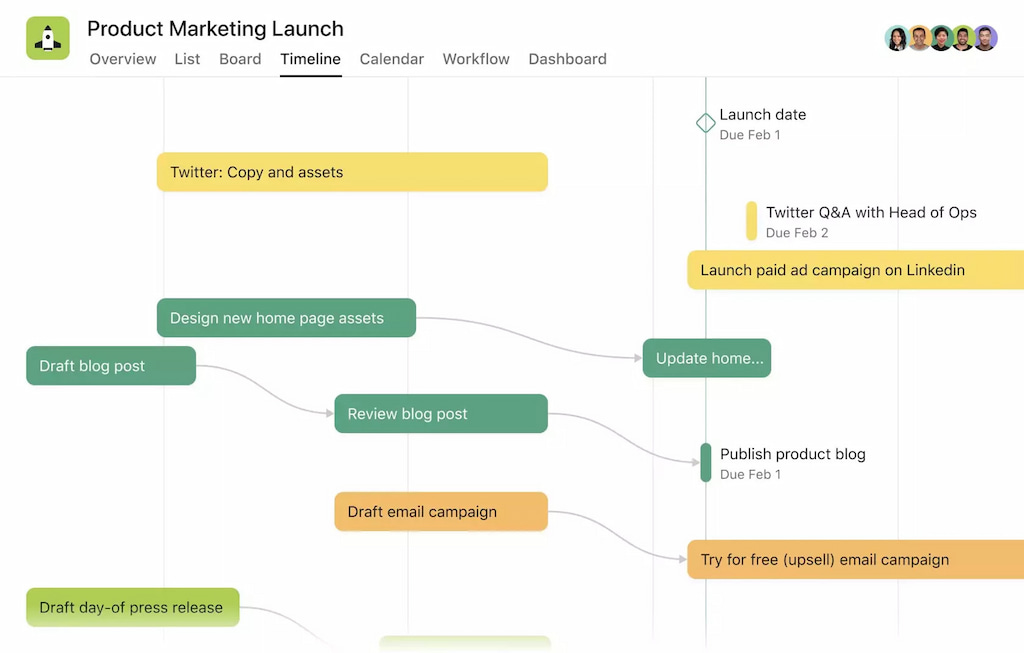
Different views suit different types of work. A content team might prefer a board for tracking production stages, while a project manager might use a timeline to coordinate tasks that depend on one another.
Task dependencies and milestones
Dependencies indicate which tasks must happen before others can proceed. If a design needs approval before development starts, for example, the dependency makes that relationship visible and helps the team identify blockers.
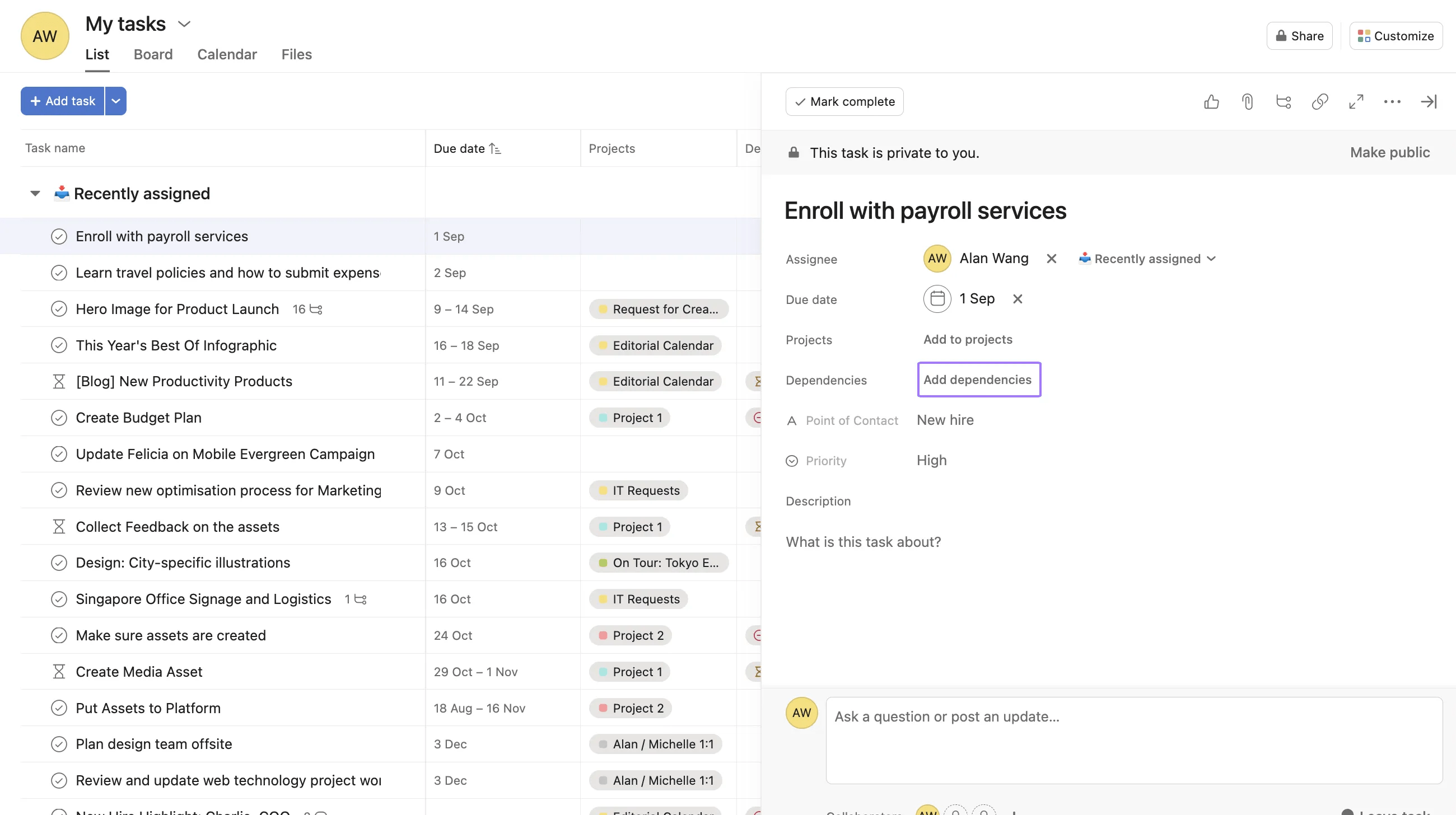
Milestones mark significant project events, such as completing a design phase or launching a product. Together, dependencies and milestones help teams understand not just what needs to happen, but how individual tasks contribute to the overall schedule.
Workflow automation
Asana’s rules automate repetitive actions based on triggers and conditions. Depending on the workflow and plan, rules can assign tasks, update fields, move work between sections, or notify teammates when something changes.
Teams can also use forms to collect requests in a consistent format and turn submissions into tasks. Asana templates help standardize recurring projects so teams don’t have to rebuild the same workflow every time.
Asana workflow automation features are particularly useful for processes with predictable steps, such as content approvals, IT requests, and employee onboarding.
Reporting and workload management
Asana provides reporting dashboards to visualize project status and progress. Higher-tier plans add capabilities such as portfolios, goals, and workload or resource management.
These tools help managers monitor multiple projects, understand how work is distributed, and identify potential capacity issues. However, meaningful reporting depends on teams keeping task statuses, deadlines, and other project information up to date.
Integrations
Asana connects with third-party tools so teams can coordinate work across their existing software stack. Integrations can link project management with communication, file storage, development, and time-tracking workflows.
For teams that need to understand how much effort projects require, Everhour adds Asana time tracking and budgeting features to the project workflow.
Asana + Everhour integration
Asana helps teams organize projects and tasks, while Everhour adds time tracking and project budgeting to that workflow. With Everhour’s Asana time tracking integration, teams can track time against Asana tasks, set time estimates, monitor progress against those estimates, and analyze actual effort in reports.
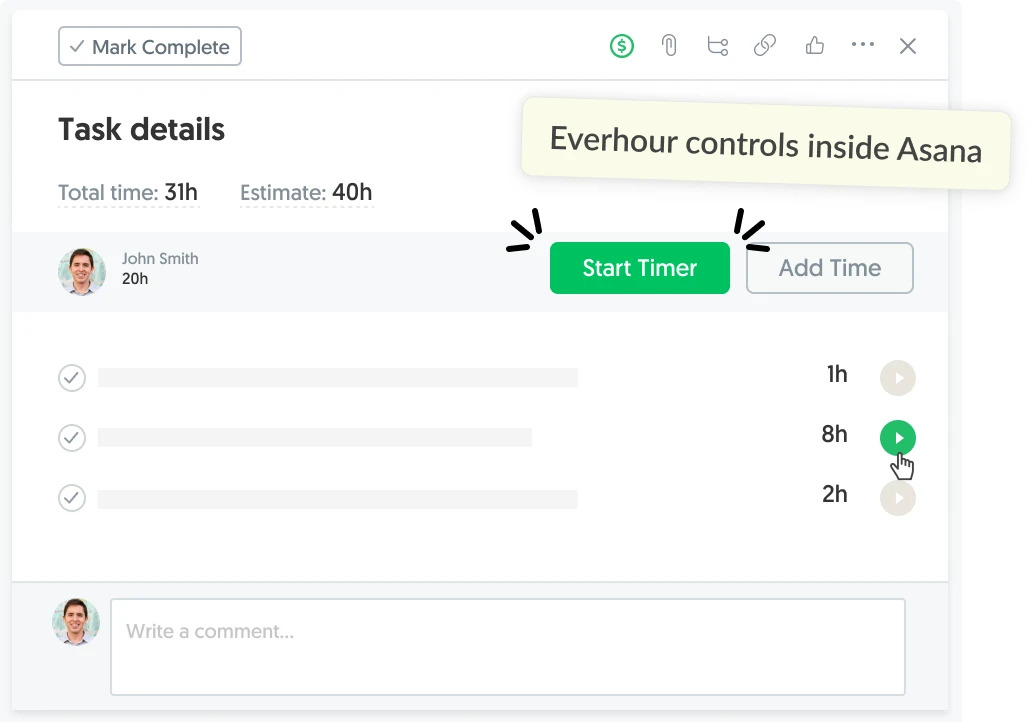
Everhour’s time tracker syncs Asana projects and tasks, allowing teams to work with their existing project structure rather than recreating it manually. This is useful for agencies, consultancies, and other teams that need to compare estimated and actual hours, understand project costs, and monitor whether work is staying within budget.
How Does Asana Work?
Asana organizes work into a hierarchy of teams, projects, tasks, and subtasks. This structure helps teams connect individual responsibilities to broader projects and makes it easier to see who is doing what and when.
A typical workflow looks like this:
- Create a project. Start with a project for a specific initiative, such as a product launch, marketing campaign, or website redesign. You can build one from scratch or use a template.
- Break the project into tasks. Add the individual activities needed to complete the work. Use subtasks for smaller steps that require separate tracking.
- Assign owners and deadlines. Give each task an assignee and due date so responsibilities and expectations are clear.
- Organize the workflow. Choose a project view, such as a list, board, calendar, or timeline, depending on how the team prefers to manage work.
- Collaborate and track progress. Team members can comment on tasks, attach files, update statuses, and notify colleagues when input or action is needed.
- Review project performance. Use dashboards and status updates to check progress, identify delays, and see which tasks need attention.
For example, a company preparing a product launch might create one project for the entire launch and divide it into marketing, design, development, and sales tasks. Each department can manage its own assignments while project managers monitor the overall timeline and dependencies.
Asana is cloud-based, so team members can access their work through a web browser or mobile app. Changes to tasks and projects are reflected in the shared workspace, helping everyone work from the same information.
Asana Pricing and Plans
Asana offers a free Personal plan and several paid tiers for teams and organizations. The main differences involve collaboration limits, project planning, automation, reporting, resource management, and administrative controls.
The following prices are listed in US dollars per user per month. Paid-plan prices below are based on annual billing; monthly billing costs more.
| Plan | Price (annual billing) | Best for |
|---|---|---|
| Personal | Free | Individuals and small groups of up to two people |
| Starter | $10.99/user/month | Teams that need project planning, reporting, and automation |
| Advanced | $24.99/user/month | Teams managing multiple projects and resources |
| Enterprise | Custom pricing | Organizations with advanced security and administration needs |
| Enterprise+ | Custom pricing | Organizations with additional compliance and governance requirements |
Note: Asana’s plans and prices can change, and some capabilities are offered as separate add-ons. Check the official Asana pricing page for the latest details before choosing a subscription.
Benefits and Limitations of Asana
Asana makes it easier to organize projects, assign responsibilities, and keep teams on the same page. But all that flexibility comes with trade-offs. Here’s where the platform shines — and where it might fall short.
Benefits of Asana
1. Everyone knows who’s doing what
Every task has an owner, deadline, and status, so responsibilities are less likely to get lost in a sea of messages. Discussions and files stay attached to the relevant work, too, making it easier to find context without digging through email threads.
2. One project, several ways to view it
Prefer a checklist? Use List view. Planning a campaign? Switch to Calendar or Timeline. Kanban fans can stick with Boards. Asana lets teams organize the same work in different ways without maintaining separate versions of a project.
3. A clearer picture of the bigger picture
Dashboards, portfolios, status updates, and goals help managers look beyond individual tasks. They can check project progress, spot bottlenecks, and see how ongoing work connects to broader business priorities.
4. Less time spent on repetitive coordination
Rules, forms, and templates take some of the busywork out of project management. Teams can automate routine updates, standardize recurring processes, and route incoming requests without manually handling every step.
5. Plenty of integrations to connect your workflow
Asana works with a broad range of communication, file-sharing, development, and reporting tools. That makes it easier to bring project management into an existing software stack rather than asking everyone to change how they work.
Limitations of Asana
1. The price tag can grow with your team
Asana’s free plan is limited to two users, so teams usually need a paid subscription to collaborate at scale. Advanced reporting, workload management, and other planning capabilities are also tied to higher-tier plans, which can make the platform a significant investment.
2. Time tracking and financial management aren’t its strong suits
Asana helps teams organize work, but it doesn’t cover every part of project operations. Businesses that need detailed time tracking, client billing, or more specialized financial reporting may have to rely on integrations or additional tools.
3. All those options can become a bit much
Custom fields, multiple project views, rules, and templates offer plenty of flexibility. But they also introduce setup and maintenance overhead. For a small team with straightforward workflows, configuring Asana can sometimes feel like more work than managing the work itself.
4. Reports are only as good as the data behind them
Dashboards won’t magically reveal what’s happening across projects. If team members forget to update task statuses, deadlines, or other details, reports can quickly become outdated or misleading. Consistent data entry is essential for getting useful insights.
5. Sometimes a simpler tool is enough
Not every team needs portfolios, automations, and advanced project views. If you’re mainly managing personal to-do lists or a handful of straightforward tasks, Asana may offer more functionality than you actually need. A lightweight task manager or a tool you already use could be easier to maintain.
Asana Alternatives
Asana is not the only option for managing projects and coordinating team work. The best Asana alternatives depend on what you find missing: simpler task management, more customization, built-in documentation, or specialized workflows.
| Alternative | Best for | How it differs from Asana |
|---|---|---|
| Trello | Simple visual task management | Uses a straightforward Kanban board structure with less project-management complexity |
| ClickUp | Teams wanting an all-in-one workspace | Combines tasks, docs, chat, whiteboards, and time tracking in one platform |
| monday.com | Customizable team workflows | Offers flexible boards and highly configurable work management |
| Wrike | Complex projects and cross-team coordination | Provides structured project management, resource planning, and budgeting capabilities |
| Notion | Documentation and lightweight project tracking | Combines notes, wikis, databases, and task management in one workspace |
| Jira | Software development teams | Focuses on issue tracking, agile workflows, backlogs, and sprint planning |
Trello
Trello is a good option for teams that mainly need to organize tasks visually. Its boards, lists, and cards make it easy to track work through stages without configuring a more extensive project management system. However, teams that need advanced reporting, workload management, or complex project dependencies may find it limiting.
ClickUp
ClickUp combines project management with documents, chat, whiteboards, and time tracking. It can suit teams that want to consolidate several tools into one workspace. Its extensive customization options are useful, although the number of features can make the platform more difficult to learn and manage.
monday.com
monday.com is a flexible work management platform built around customizable boards. Teams can adapt fields, views, and workflows to different departments and processes. It’s worth considering if you want more control over how work is organized, though setting up and maintaining customized workflows can require additional effort.
Wrike
Wrike is designed for teams managing complex projects across departments. It offers structured workspaces, request forms, resource management, and project planning tools. It may be a better fit for organizations that need more formal project controls, although its interface can feel more complex.
Notion
Notion combines documentation, knowledge management, and project tracking. Teams can build task databases alongside meeting notes, internal wikis, and project briefs. It’s particularly useful when documentation is central to the workflow, but it requires more setup than a dedicated project management tool.
Jira
Jira is built primarily for software development and technical teams. It supports backlogs, sprints, issue tracking, and agile reporting, making it more specialized than Asana. Teams outside software development may find its workflows unnecessarily technical.
The main distinction is that Asana offers a balance of structured project management and accessibility. Alternatives may be better when a team has a narrower priority, such as simple Kanban boards, highly customized workflows, or software development processes.
Is Asana Right for Your Team?
Asana is a good fit for teams that need a shared system to coordinate projects, assign responsibilities, and track progress across multiple people or departments. Its combination of task management, project views, automation, and reporting makes it flexible enough for a range of workflows.
Asana may be a good choice if your team:
- Manages projects with multiple tasks, owners, and deadlines.
- Needs visibility into work across departments or teams.
- Coordinates recurring processes, approvals, or cross-functional projects.
- Wants to standardize workflows with templates and automation.
- Needs different project views for planning and tracking work.
However, Asana may not be the best option if you only need a simple to-do list, prefer a lightweight tool, or require specialized functionality that isn’t included in your plan.
Consider your team’s actual workflow before choosing a subscription. Think about how many people will use the platform, whether you need advanced reporting or resource management, and which integrations are essential. It’s also worth testing a representative project before rolling Asana out across the organization.
Ultimately, Asana works best when teams need more than a task list but don’t want to build a highly customized project management system from scratch.
Frequently Asked Questions
Asana is mainly used for project and task management. Teams use it to organize work, assign responsibilities, set deadlines, coordinate workflows, and monitor project progress.
Yes. Asana offers a free Personal plan for individuals and small groups of up to two users. It includes basic task management and project views, while advanced features require a paid subscription.
Yes. Asana is a work management and project management platform. It helps teams plan projects, break them into tasks, assign owners, manage deadlines, and track progress.
Asana offers a broader set of project management features, including multiple project views, dependencies, reporting, and workload management. Trello focuses on visual Kanban boards and straightforward task tracking, making it simpler to use for basic workflows.
Asana offers time tracking features on its Advanced plan and above, allowing teams to record estimated and actual task time. Teams that need more detailed time tracking and project budgeting can also connect Asana with dedicated tools such as Everhour.
Yes. Individuals can use Asana to organize personal tasks, set deadlines, and manage projects. However, its extensive collaboration and project management features may be more than necessary if you only need a basic personal to-do list.
Yes. Small businesses can use Asana to coordinate projects, manage recurring tasks, and keep responsibilities visible across a team. The free plan is limited to two users, so growing teams may need a paid subscription.

Maria
A dedicated content enthusiast with extensive experience in international teams and projects of all sizes. Maria thrives on creativity and attention to detail, fueled by a love for fantasy novels, music, classic black-and-white films, and always finding ways to make things better.