


What Is ClickUp? A Complete Overview of the Platform
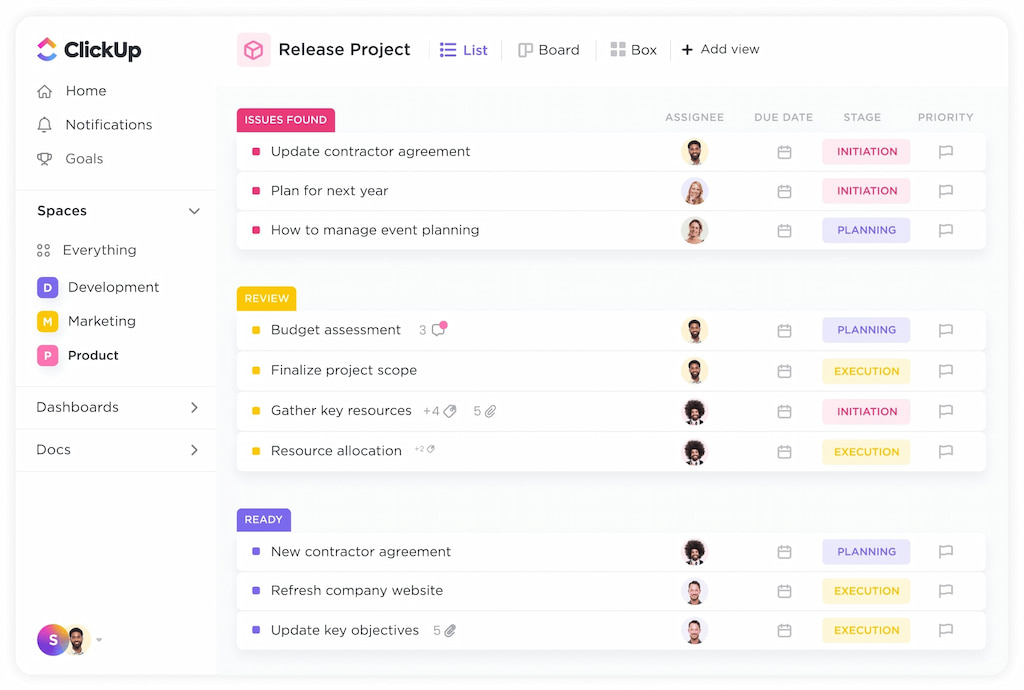
ClickUp is a popular project management and productivity tool designed to bring tasks, projects, and team collaboration into one place. Instead of switching between multiple apps for planning, tracking, and communication, teams use ClickUp to organize work, manage deadlines, and stay aligned on goals from a single platform.
In this ClickUp review, we’ll break down what ClickUp is, what it’s used for, and who it’s best suited for, so you can decide whether it’s the right tool for your workflow.
What Is ClickUp?
ClickUp is a cloud-based project management and work management platform designed to help teams plan, organize, and track their work in one place. It combines task management, collaboration tools, documentation, time tracking, and reporting within a highly customizable system. Businesses of all sizes use ClickUp project management to centralize workflows and improve team coordination.
👀 What it does best:
- Centralizes tasks, docs, goals, and reporting in one platform
- Offers extensive customization for different workflows
- Replaces multiple tools with an all-in-one system
🤔 Where it’s complex:
- Steep learning curve for new users
- Extensive features can feel overwhelming
- Requires initial setup to fully optimize workflows
ClickUp Core Features
Task & project management
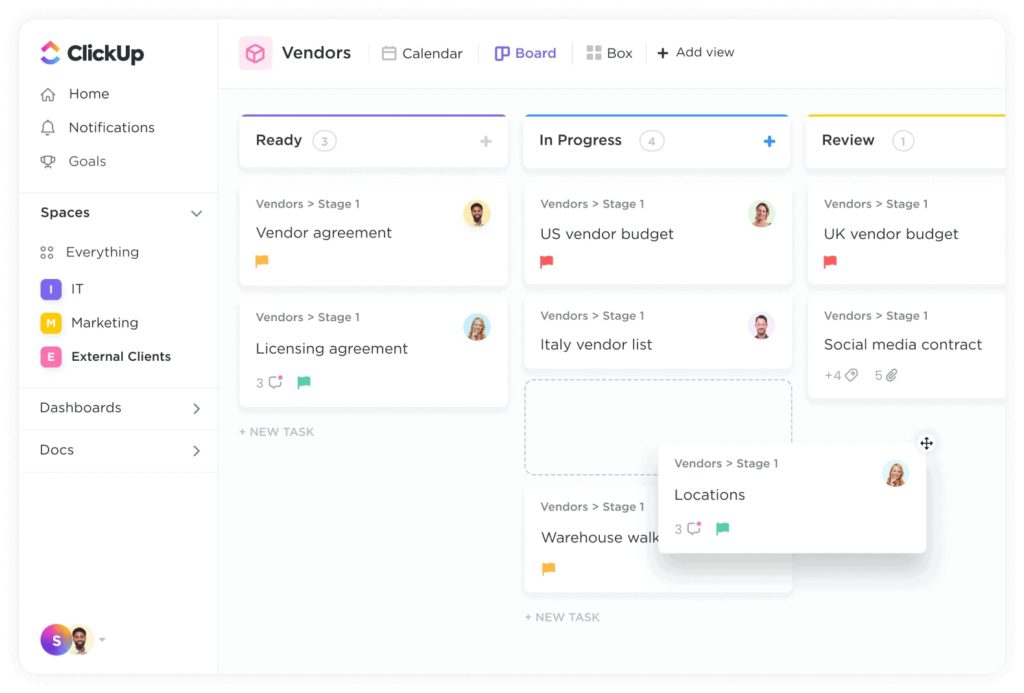
Organize projects, tasks, and subtasks in lists, boards, or timelines.
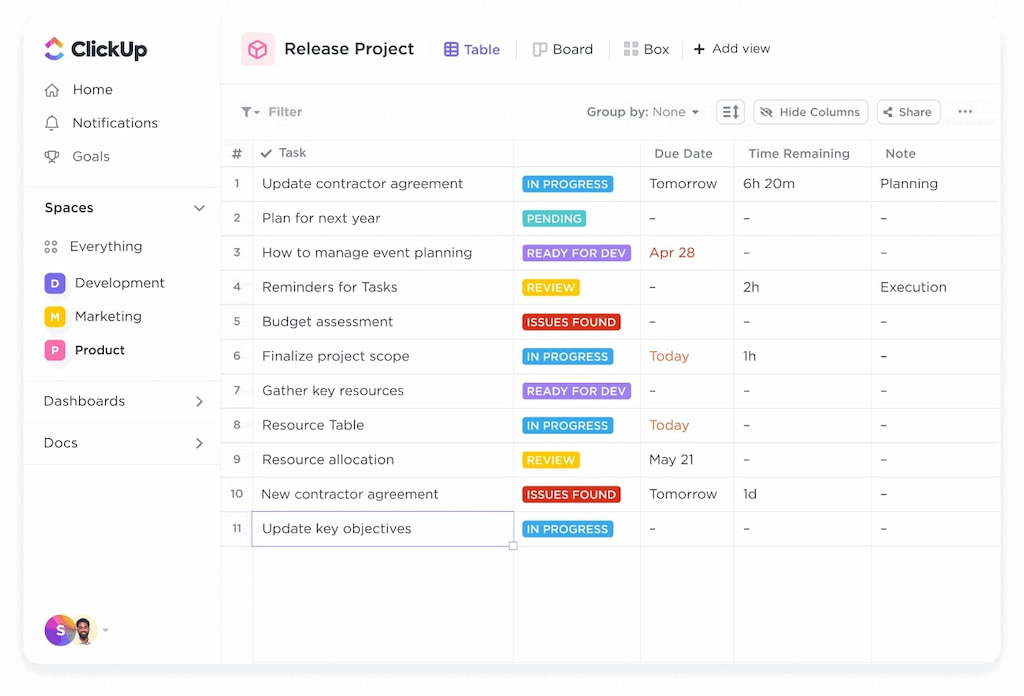
💪 Strengths: Highly flexible views (list, board, Gantt, timeline), task dependencies, recurring tasks.
❌ Limitations: Can feel overwhelming for small teams; setting up workflows takes time.
🏆 Best for: Teams managing complex projects with multiple dependencies.
Key takeaways:
- Flexible task structures
- Supports task dependencies and recurring tasks
- Multiple visual views for project oversight
Time tracking
Built-in timer and manual ClickUp time tracking for tasks.
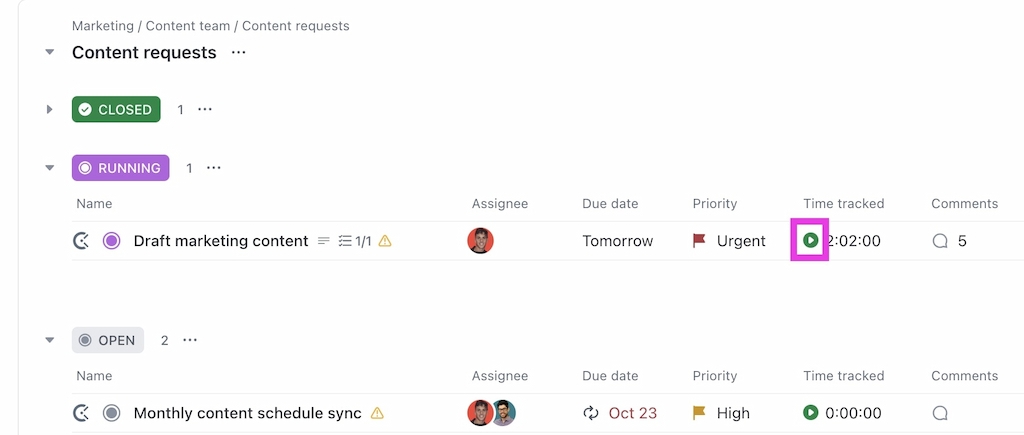
💪 Strengths: Centralized time tracking for tasks/projects, reporting, integrations with billing tools.
❌ Limitations: Manual tracking can be tedious; limited offline tracking on mobile.
🏆 Best for: Teams needing accurate time tracking and reporting.
Key takeaways:
- Tracks time per task/project
- Supports manual and automated logging
- Integrates with invoicing and payroll
Collaboration & communication
Comments, mentions, docs, and chat channels to facilitate team communication.
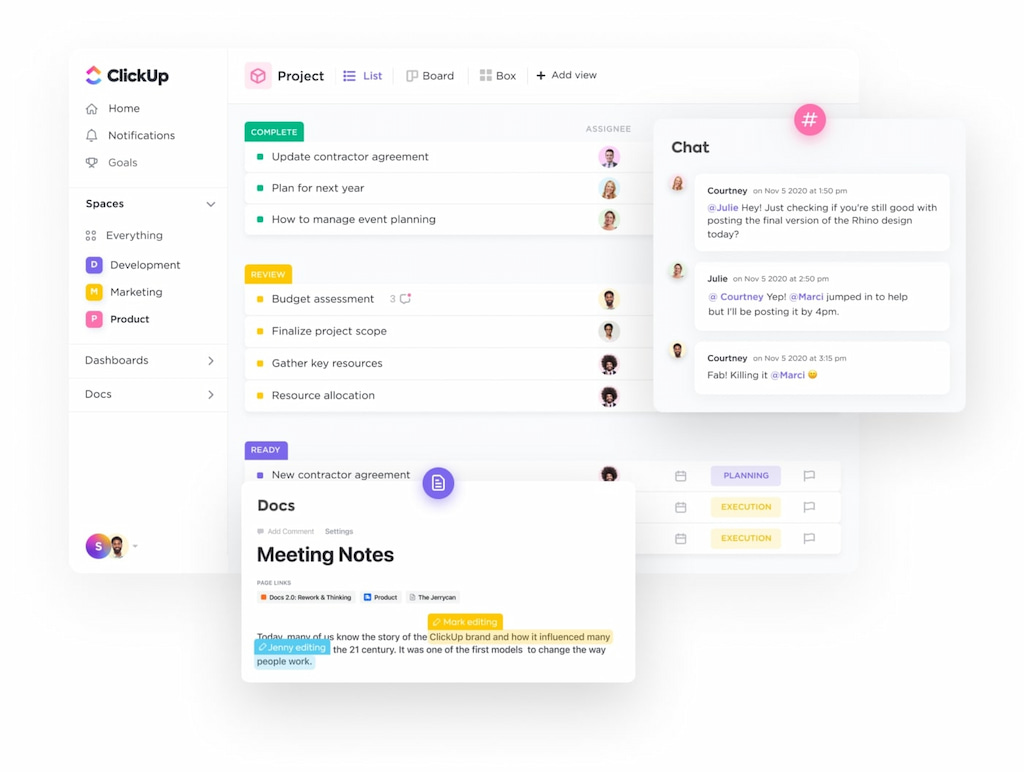
💪 Strengths: Keeps communication tied to tasks; reduces external tools.
❌ Limitations: Can be cluttered in large teams; learning curve for docs and comment threads.
🏆 Best for: Teams looking to centralize discussion around tasks and projects.
Key takeaways:
- Comments tied to tasks
- Docs and notes integrated
- Reduces need for external messaging tools
Reporting & analytics
Generate dashboards, reports, and goal tracking metrics.
![a detailed clickup review in 2022 [the good & the bad]](https://blog-cdn.everhour.com/blog/wp-content/uploads/2022/10/views-timeline.jpg)
💪 Strengths: Highly customizable dashboards; insights on task completion, productivity, and timelines.
❌Limitations: Complex setup for advanced reporting; can be overwhelming for new users.
🏆 Best for: Managers and executives needing high-level visibility and metrics.
Key takeaways:
- Customizable dashboards
- Reports on time, task progress, and productivity
- Goal tracking across teams
Integrations & automations
Connects with hundreds of apps and allows workflow automations.
💪 Strengths: Zapier, Slack, Google Workspace, GitHub, Everhour’s time tracker, and more; triggers for automating repetitive tasks.
❌ Limitations: Automation rules can be complex; limited free-tier automations.
🏆 Best for: Teams aiming to streamline workflows and reduce repetitive work.
Key takeaways:
- Supports hundreds of ClickUp integrations (including our ClickUp time tracking integration)
- Custom automation rules
- Reduces repetitive manual tasks
How ClickUp Works
ClickUp is built around a flexible structure that helps teams organize work from high-level strategy down to individual tasks. Here’s how it works in simple terms:
Workspace structure (Workspace → Spaces → Folders → Lists → Tasks)
ClickUp uses a hierarchy to keep everything organized:
- Workspace – Your entire organization (company-level account).
- Spaces – Major departments or teams (e.g., Marketing, Product, HR).
- Folders – Group related projects within a Space.
- Lists – Contain tasks for a specific project or workflow.
- Tasks – Individual action items, which can include subtasks, comments, attachments, and time tracking.
This allows teams to scale from small projects to complex, multi-team operations without losing structure.
Custom fields and statuses
ClickUp allows you to customize how tasks are tracked:
- Custom fields let you add extra data (e.g., priority level, budget, client name, deadlines).
- Custom statuses allow teams to define their own workflow stages (e.g., “Backlog,” “In Progress,” “Review,” “Done”).
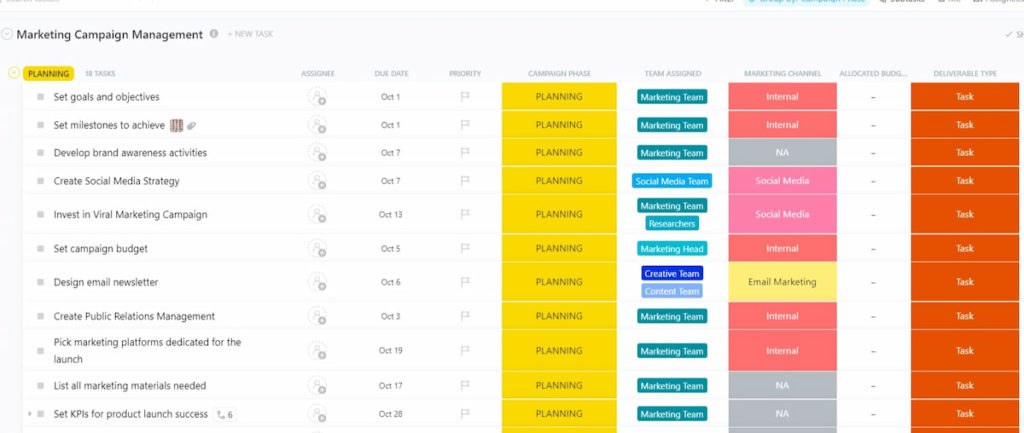
This makes it adaptable to different industries and processes instead of forcing a rigid workflow.
Permissions and roles
ClickUp includes role-based access control to manage visibility and editing rights:
- Admins manage settings and permissions.
- Members work on tasks and projects.
- Guests can access specific items only.
This ensures teams can collaborate while maintaining control over sensitive information.
Customization philosophy
ClickUp is designed to be highly flexible. Teams can customize views, dashboards, automations, fields, and workflows to match their exact processes.
For beginners, this flexibility may require initial setup time — but once configured, it allows teams to build a system tailored to how they actually work.
Who Is ClickUp For?
✅ Ideal for
-
Growing teams
Teams that expect to scale benefit from ClickUp’s flexible structure and ability to organize work across departments. -
Agencies
Marketing, creative, and service agencies can manage multiple clients, projects, deadlines, and time tracking within one platform. -
Product teams
ClickUp supports roadmap planning, sprint management, bug tracking, documentation, and cross-functional collaboration. -
Remote teams
With multiple views, comments, docs, and real-time updates, distributed teams can centralize communication and workflows.
❌ Less ideal for
-
Teams wanting minimal setup
ClickUp requires initial configuration to fully leverage its features, which may feel overwhelming for those seeking plug-and-play simplicity. -
Very small teams needing simple task lists
If basic to-do lists and lightweight tracking are enough, ClickUp may feel more complex than necessary. -
Organizations preferring rigid workflows
Teams that prefer fixed structures and minimal customization may find ClickUp’s flexibility excessive.
ClickUp Pricing
ClickUp offers multiple pricing tiers designed to support individuals, small teams, and larger organizations. The platform follows a feature-based pricing model, where advanced functionality unlocks in higher plans.
| Plan | Price (per user/month) | Designed for | Key Features |
|---|---|---|---|
| Free Forever | $0 | Individuals organizing personal projects |
|
| Unlimited | $7 (billed yearly) | Teams running all their work in ClickUp |
|
| Business | $12 (billed yearly) | Cross-functional teams managing complex projects |
|
| Enterprise | Custom pricing | The governed, scalable platform for the whole organization |
|
Pricing verdict
ClickUp’s pricing is competitive for the number of features included, particularly in the mid-tier plans. However, as functionality increases, so does platform complexity.
It offers strong value for teams that will actively use its advanced customization and automation capabilities.
ClickUp Pros and Cons
ClickUp has many features and customization options, but it comes with a learning curve. It can grow with teams of all sizes and supports different workflows, though it may feel complex at first. Here’s a clear look at its strengths and limitations:
| ✅ Pros | ❌ Cons |
|---|---|
| Highly customizable workflows and fields | Steep learning curve for new users |
| Multiple views (List, Board, Gantt, Calendar) | Interface can feel overwhelming |
| Combines tasks, docs, goals, dashboards, and time tracking | Setup requires time and planning |
| Scales well from small teams to enterprise | Too many features for teams with simple needs |
| Strong automation and integrations | Performance may slow in very large workspaces |
ClickUp is a flexible platform with lots of features, great for growing teams, agencies, and remote teams. It can feel complex for users who want something simple or easy to set up.
ClickUp FAQ
What is ClickUp used for?
ClickUp is a project management and work management platform designed to help teams organize tasks, track progress, collaborate, and manage projects across multiple workflows.
Who can benefit most from ClickUp?
Growing teams, agencies, product teams, and remote teams benefit most due to its scalability, workflow customization, and multiple views.
Can ClickUp replace multiple tools?
Yes. ClickUp combines task management, docs, goals, dashboards, time tracking, and automations in one platform, reducing the need for separate apps.
Is ClickUp suitable for small teams?
It can be used by small teams, but its complexity may be overkill for very simple task tracking needs.
What are the main limitations of ClickUp?
Its steep learning curve, potential feature overload, and setup time are common challenges, especially for teams new to structured project management tools.
Does ClickUp integrate with other software?
Yes. ClickUp integrates with hundreds of tools including Slack, Zoom, Google Workspace, Jira, and more, enabling seamless workflow automation.
Can ClickUp handle time tracking and reporting?
Yes. ClickUp includes built-in time tracking, reporting dashboards, and goal tracking for monitoring progress and productivity.
Is ClickUp customizable?
Highly. Users can customize workspaces, spaces, folders, lists, tasks, statuses, custom fields, and automation rules to match team workflows.
Conclusion
ClickUp is a flexible project and work management platform with strong customization, many features, and scalability. It’s best for growing teams, agencies, and remote teams that need adaptable workflows. Its complexity and learning curve can be challenging for very small teams or those wanting simple task tracking. Teams seeking minimal setup or rigid workflows may prefer lighter alternatives.
Overall, ClickUp works well for teams willing to invest time in setup and customization to fully use its capabilities.

Maria
A dedicated content enthusiast with extensive experience in international teams and projects of all sizes. Maria thrives on creativity and attention to detail, fueled by a love for fantasy novels, music, classic black-and-white films, and always finding ways to make things better.