


15 Powerful Remote Work Software Picks

Remote work software covers a lot of ground — communication, project management, time tracking, file sharing, and secure remote access. Most distributed teams need tools across several of these categories rather than one platform that does everything.
This guide covers the best remote work software across six categories: time tracking and productivity, communication and collaboration, project management, file sharing and document collaboration, remote access and virtual desktops, and security considerations. For each category we’ve picked the tools that work best for distributed teams and explained what makes them worth considering.
How We Evaluated These Tools
We evaluated each tool based on how well it serves distributed and remote teams, ease of use, integration capabilities, pricing, and user feedback from G2 and Capterra. Pricing was verified directly on each vendor’s website as of August 2026.
Disclosure: Everhour is our product and appears in the time tracking section. We’ve aimed to give every other tool here an honest writeup including real limitations.explore effective remote work solutions, knowing our evaluations are free from external influences.
Time Tracking and Productivity Tools for Remote Teams
Time tracking software for remote work serves two distinct purposes: understanding where project time goes for billing and budgeting, and understanding how individual work time is spent for personal productivity. The right time tracker depends on which of those you actually need.
Everhour
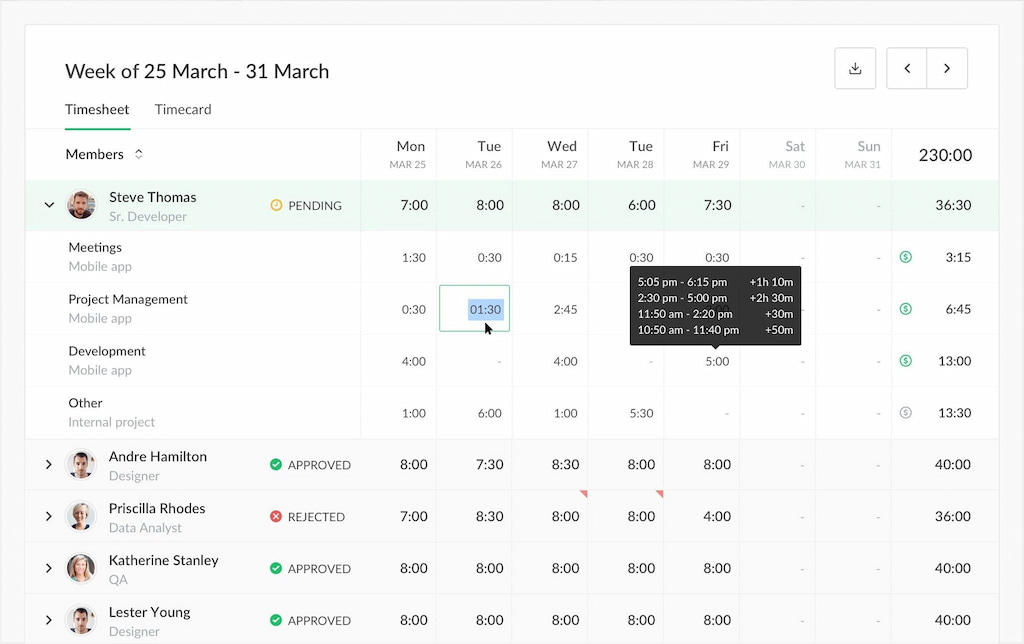
Everhour is built for remote teams that manage project-based work and need to track billable hours, budgets, and project profitability. It works inside Asana, ClickUp, Trello, Jira, Notion, and Basecamp so time gets logged against actual tasks rather than in a separate app. For distributed teams where visibility into project progress matters as much as hours logged, that embedded approach removes the friction that makes time tracking break down in remote environments.
💰 Free for up to five users. Team plan $8.50/user/month.Harvest
RescueTime
RescueTime takes a different angle — instead of tracking time against projects, it runs in the background and records which apps and websites are being used during work hours. For remote workers who want to understand where their workday actually goes without manually logging anything, it answers that question automatically. It’s less useful for team-level project tracking and better suited to individual productivity insights.
![11+ timesheet apps for any need [updated for 2021]](https://everhour.com/blog/wp-content/uploads/2021/07/rescuetime-app-1024x625.png)
💰 Solo plan $7/month. Solo+ $12/month. Team plan $10/user/month.
Communication and Collaboration Tools for Remote Teams
When your business has staff that is working remotely, establishing smooth communication and remote collaboration between each team member is absolutely essential. This is because, with remote teams, you can’t just go over to someone for a quick chat. Everything is done over the Internet, so ensuring everyone is in the same place and can see and answer messages and calls is essential.
Slack
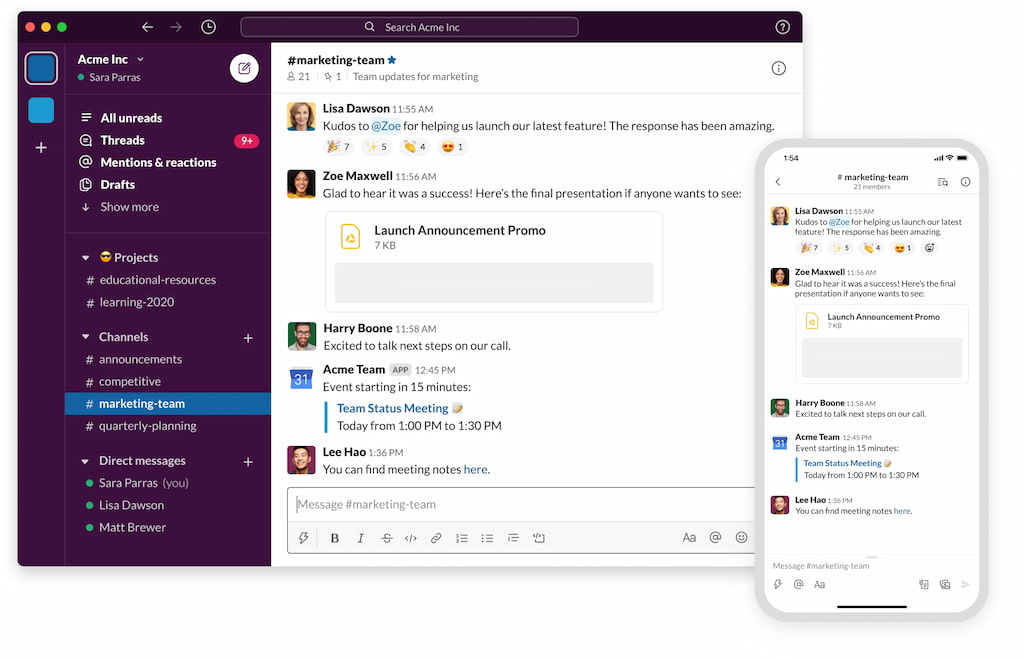
Slack organizes team conversations into channels by project, topic, or team rather than letting everything pile up in one inbox. For distributed teams, that structure makes a real difference — you can follow what matters, ignore what doesn’t, and find past conversations without scrolling through endless threads. The main risk is notification overload, which is why teams that use Slack well set clear norms about when to use channels versus direct messages versus not using Slack at all.
💰 Free plan with 90-day message history. Pro €8.75/user/month. Business+ €15/user/month.
Zoom
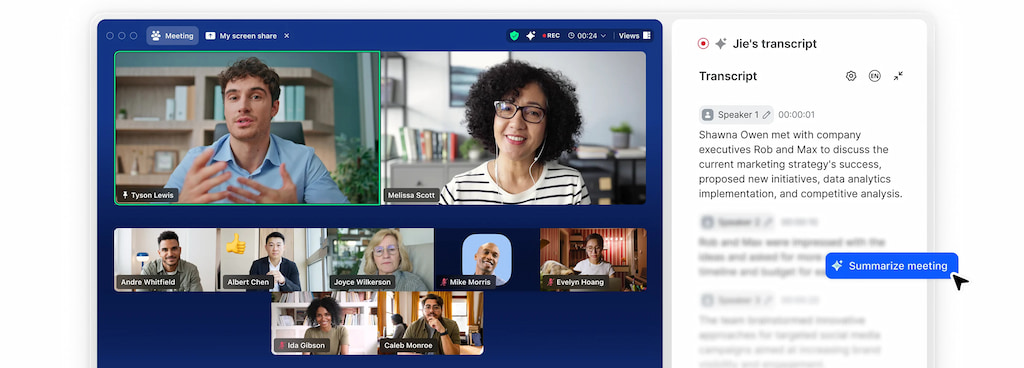
Zoom became the default video conferencing tool for remote teams and has stayed there because it works reliably at scale. Call quality is consistently strong, the interface is familiar enough that anyone can join without training, and it handles everything from a two-person check-in to a company-wide all-hands without meaningful problems.
💰 Free: 40-minute meetings, up to 100 participants. Pro $14.16/user/month. Business $18.33/user/month.
Microsoft Teams
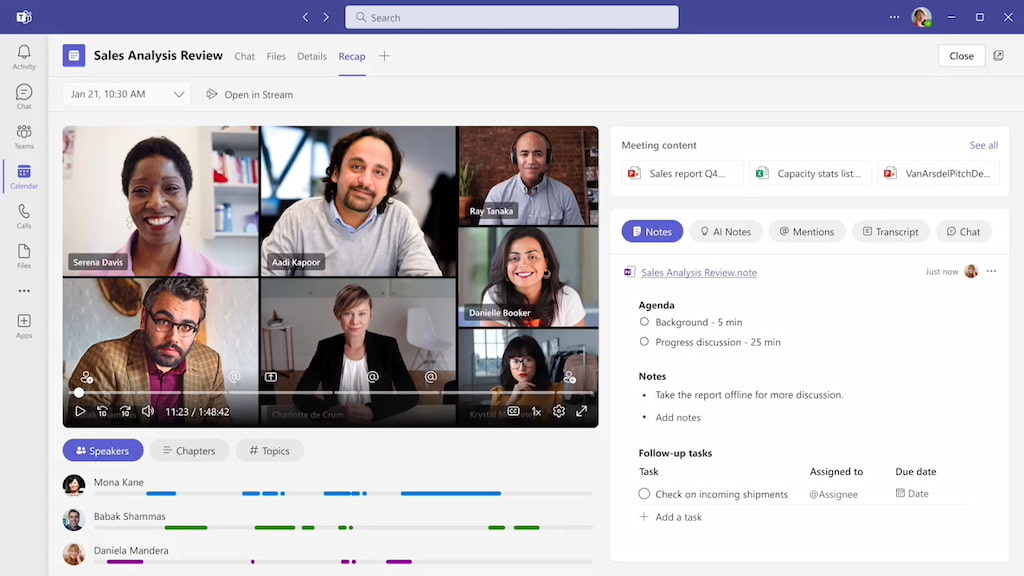
Microsoft Teams is worth considering specifically for organizations already running on Microsoft 365. It combines chat, video calls, file sharing, and document collaboration in one platform, with native integration into Word, Excel, PowerPoint, and SharePoint. For teams that live in the Microsoft ecosystem, that integration reduces the need for separate tools for communication and file collaboration. For teams that don’t use Microsoft 365, Slack and Zoom cover the same ground with less overhead.
💰 Free plan available. Essentials $4/user/month. Microsoft 365 Business Basic $6/user/month.
Project Management Tools for Remote Teams
For remote teams, project management software replaces the natural visibility of an office — everyone can see what’s being worked on, who’s responsible, and what’s due without a status update meeting. The four tools below cover different points on the complexity spectrum.
Trello
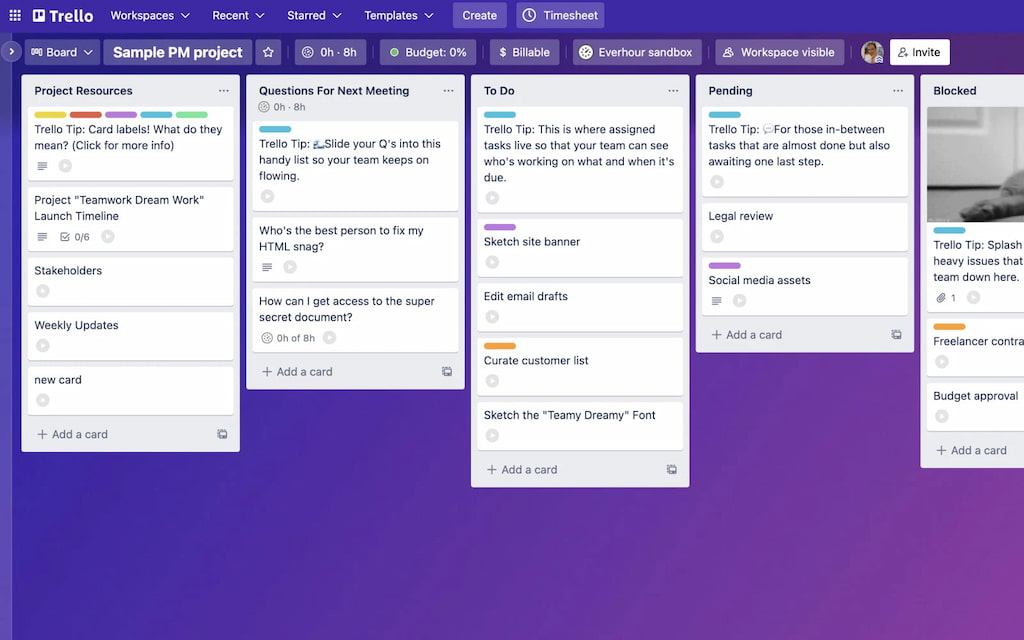
Trello is the simplest visual task management tool on this list. Cards move across columns as work progresses — straightforward enough that a new team member can understand the board within minutes. It works best for small teams with simple workflows and becomes limiting as project complexity grows.
💰 Free. Standard $5/user/month. Premium $10/user/month.
ClickUp
ClickUp tries to be one platform for everything — tasks, docs, goals, time tracking, and chat. For remote teams willing to invest in setup, it delivers genuine breadth. For teams that want to get started immediately, the feature density can be overwhelming.
![a detailed clickup review in 2022 [the good & the bad]](https://everhour.com/blog/wp-content/uploads/2022/10/views-timeline.jpg)
💰 Free. Unlimited $7/user/month. Business $12/user/month.
Asana
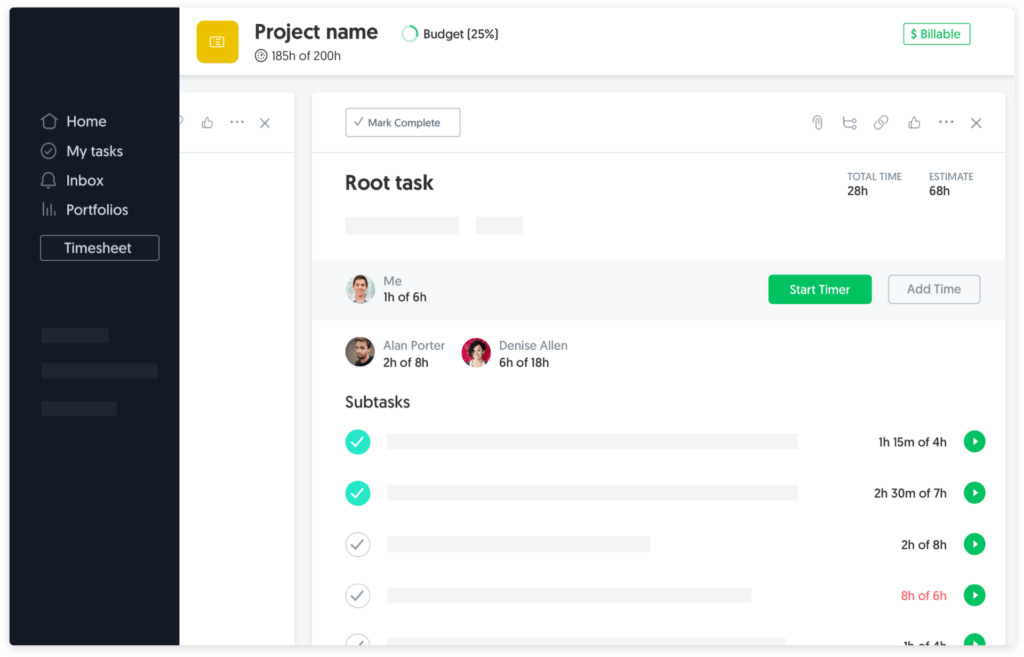
Asana gives distributed teams a shared view of what needs to be done, who’s doing it, and when it’s due. It’s more structured than Trello, which is a strength if your team wants clear ownership and deadlines, and a limitation if you want flexibility. The free plan is genuinely useful for evaluating it properly.
💰 Free. Premium $10.99/user/month. Business $24.99/user/month.
Basecamp
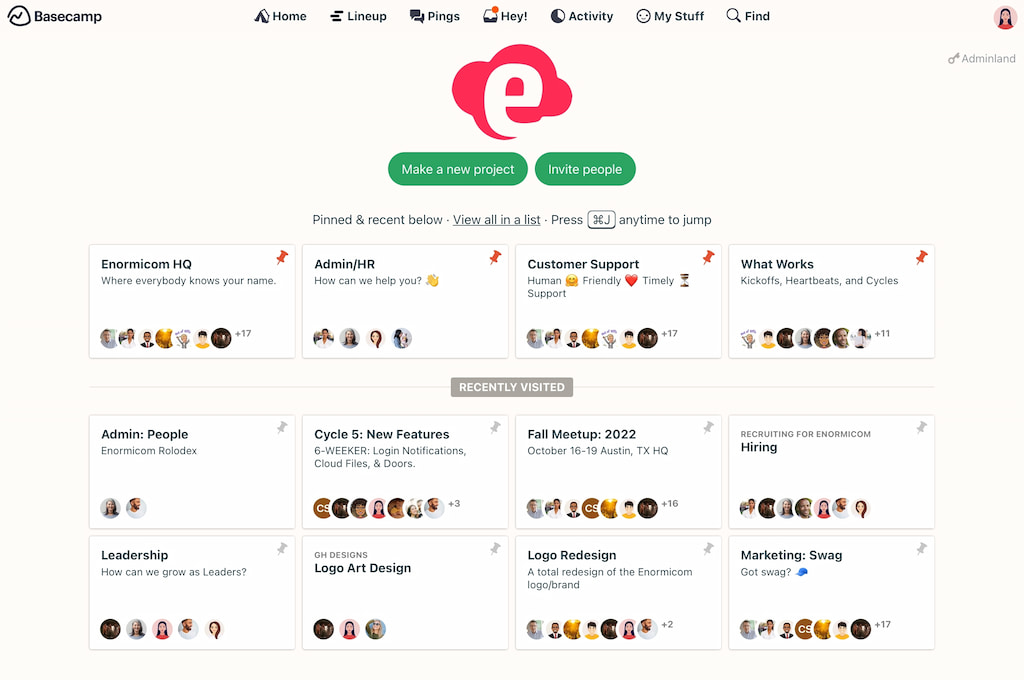
Basecamp takes the opposite approach to ClickUp — instead of offering every possible feature, it gives teams a small fixed set of collaboration tools and keeps them simple. Message boards, to-do lists, file sharing, and group chat cover the basics without configuration overhead. Flat monthly pricing makes it cost-effective for larger teams.
💰 Basecamp $15/month flat. Basecamp Pro Unlimited $299/month flat.
File Sharing & Collaboration Tools for Remote Teams
Google Drive
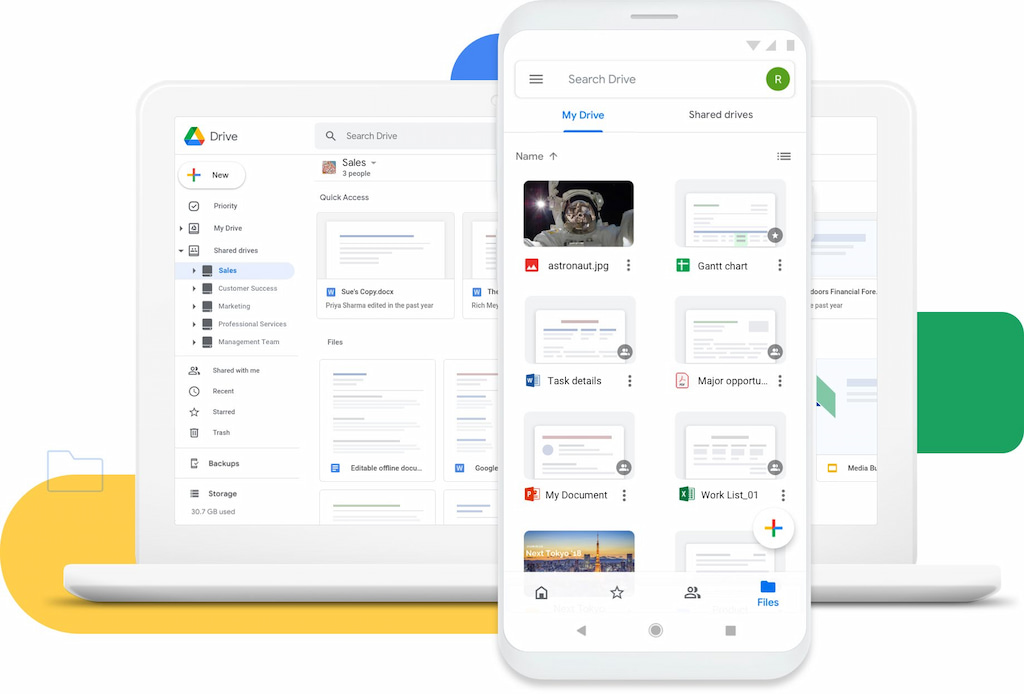
Google Drive is the default for most remote teams — documents, spreadsheets, and presentations in one place, multiple people editing simultaneously without version conflicts, accessible from any device without installing software. For teams that need to share and collaborate on files without a complicated setup, it covers the basics better than anything else at its price point.
💰 Free with 15GB storage. Google Workspace from $6/user/month.
Dropbox
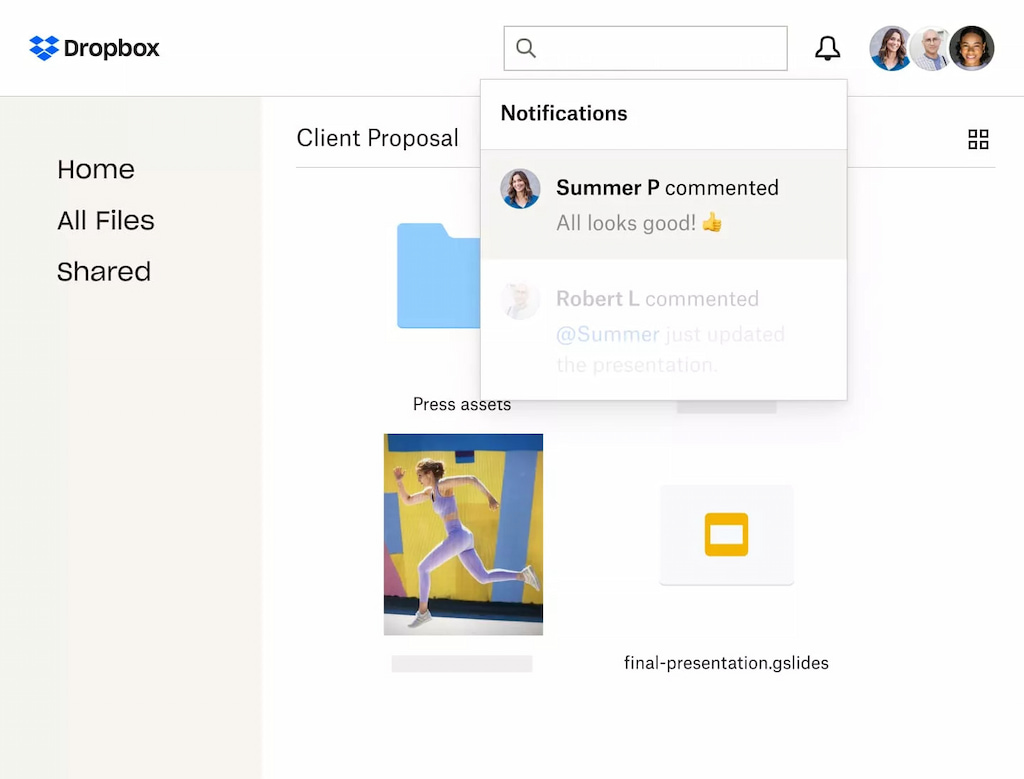
Where Google Drive is built around collaborative editing, Dropbox is better suited for storing and syncing files that aren’t being actively edited — large media files, project archives, HR and legal documents. It’s simpler to navigate than Google Drive and works well as a long-term storage layer alongside Google’s collaborative tools.
💰 Free with 2GB storage. Plus $9.99/month. Business from $15/user/month.
MicrosoftOneDrive
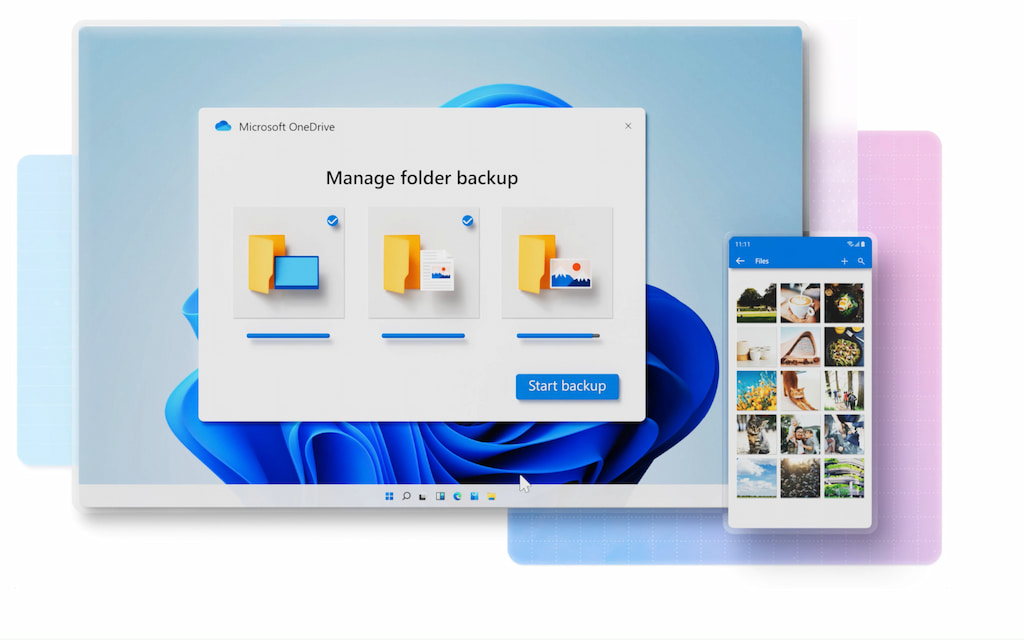
OneDrive makes most sense for teams already using Microsoft 365 — it integrates natively with Word, Excel, and PowerPoint, so files created in those apps are automatically stored and shareable without any extra steps. For teams outside the Microsoft ecosystem, Google Drive covers the same ground more accessibly.
💰 Included with Microsoft 365 plans from $6/user/month. Standalone plans from $1.99/month for 100GB.
Remote Access and Virtual Desktop Tools
Remote access tools let team members connect to office computers or company systems from anywhere, and let IT teams support employees without being in the same location. For organizations with on-premise systems, legacy software, or employees who need to access their office setup remotely, these tools fill a gap that communication and project management tools don’t cover.
TeamViewer
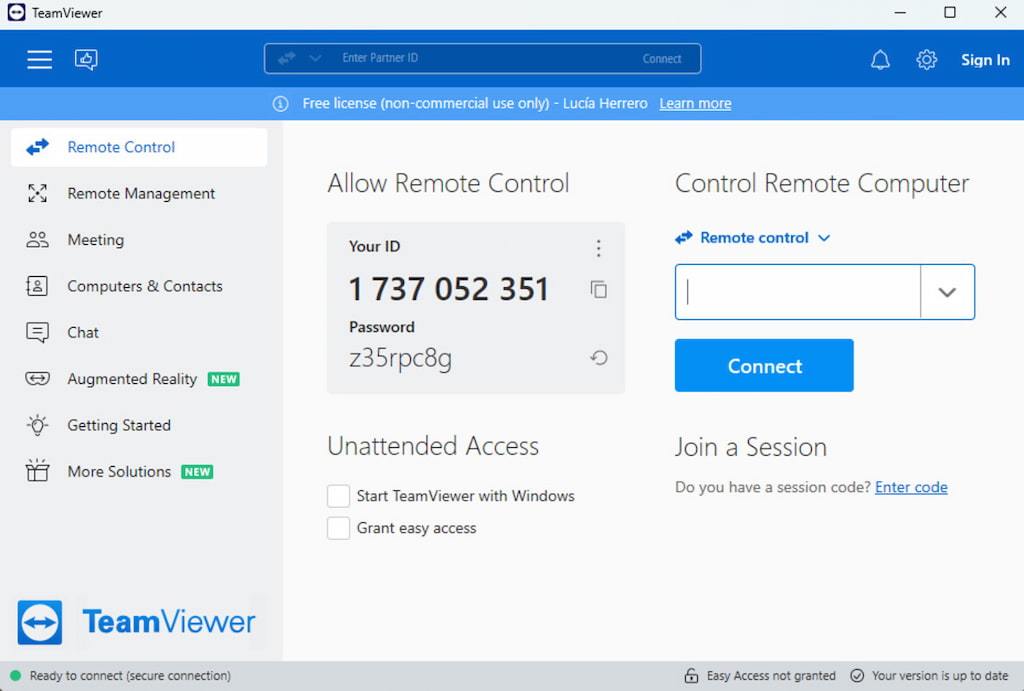
TeamViewer is the most widely used remote access tool for business, covering everything from IT support and remote troubleshooting to unattended device access for servers and kiosks. It works across Windows, Mac, Linux, iOS, and Android, and the connection quality is reliable enough for tasks that require low latency like live troubleshooting or remote demonstrations. The free plan covers personal use; business use requires a paid license.
💰 Business plan $24.90/month. Premium $50.90/month. Corporate $102.90/month. All billed annually.
AnyDesk
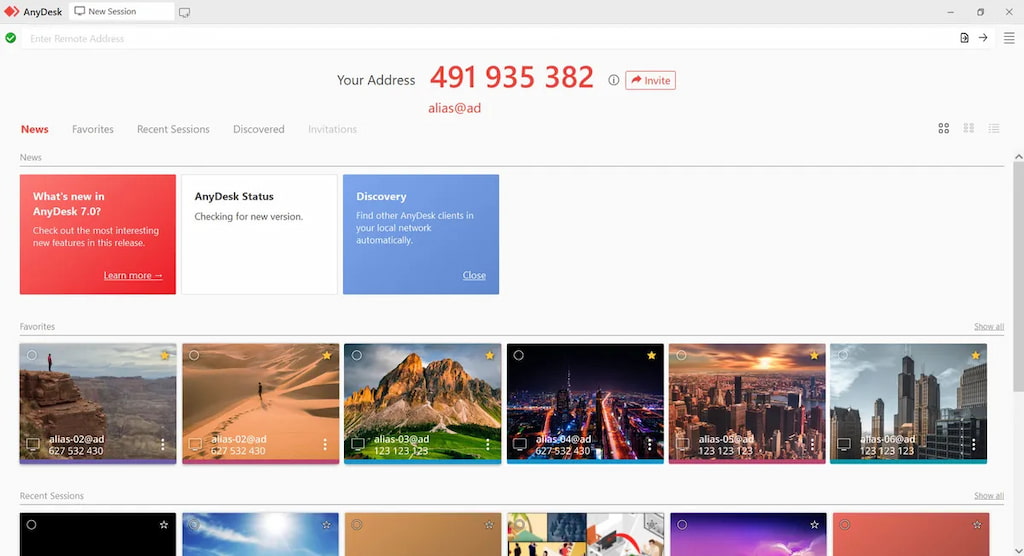
AnyDesk is a strong TeamViewer alternative, particularly for teams that prioritize connection speed and a lighter software footprint. It uses a proprietary codec that delivers low-latency connections even on slower networks, which matters for remote workers in locations with inconsistent internet. It covers the same core use cases as TeamViewer — remote support, unattended access, file transfer — at a lower price point.
💰 Solo $14.90/month. Standard $29.90/month. Advanced $79.90/month. All billed annually.
VMware Horizon
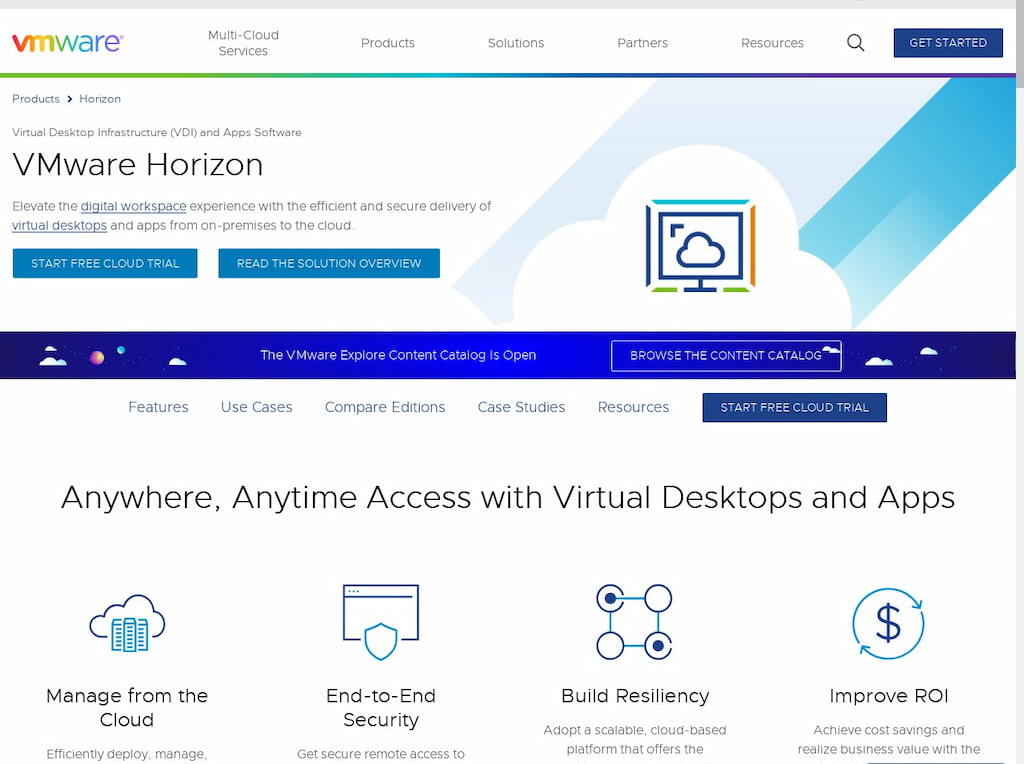
VMware Horizon is enterprise-grade virtual desktop infrastructure — it centralizes desktop environments on company servers and delivers them to any device, anywhere. Unlike TeamViewer or AnyDesk which connect to an existing physical machine, Horizon creates virtualized desktops that can be provisioned, managed, and revoked centrally by IT. For large organizations with strict security requirements, regulated industries, or complex software environments that can’t run locally on employee devices, it’s the appropriate solution. For smaller teams, it’s significant overkill.
💰 Custom pricing.
Security and Privacy Considerations
When evaluating remote work software, check for end-to-end encryption for data in transit, two-factor authentication for account access, and GDPR compliance if your team operates in the EU. Most mainstream tools on this list meet these standards, but it’s worth verifying for any tool handling sensitive client data or operating in regulated industries. Role-based access controls — the ability to restrict which team members can see or edit specific files, projects, or data — are particularly important for distributed teams where not everyone should have access to everything.
FAQ
At minimum: a communication tool (Slack or Microsoft Teams), a project management tool (Asana, ClickUp, or Trello), and a file sharing platform (Google Drive or OneDrive). Time tracking, video conferencing, remote access, and document collaboration tools build on top of that foundation.
Remote work software covers the tools distributed teams use to communicate, collaborate, and manage work — Slack, Zoom, Asana, Google Drive. Remote access software specifically lets users connect to and control a computer or system from a different location — TeamViewer, AnyDesk, VMware Horizon. Most remote teams need the former; remote access tools are more relevant for IT support and organizations with on-premise systems.
It depends on your existing software stack. Microsoft Teams is the stronger choice for organizations already using Microsoft 365, where native integration with Word, Excel, and SharePoint adds real value. Slack is generally easier to set up, has a broader integration ecosystem, and works better for teams not invested in the Microsoft ecosystem.
Google Drive, Slack, Asana, Trello, and Everhour all offer genuinely useful free plans. Zoom’s free plan covers 40-minute meetings. For remote access, TeamViewer has a free plan for personal use only — business use requires a paid license.
Not necessarily. Remote access tools are most relevant for teams that need to access office computers or company systems remotely, or for IT teams supporting distributed employees. Teams working entirely in cloud-based tools like Google Workspace or Microsoft 365 may not need dedicated remote access software at all.
Remote Work Software: Conclusion
The right remote work software stack depends on what your team actually needs — not the longest feature list or the most popular brand. Start with communication and project management as the foundation, add file sharing, then layer in time tracking, remote access, and security tools based on your specific workflow and team size.

Maria
A dedicated content enthusiast with extensive experience in international teams and projects of all sizes. Maria thrives on creativity and attention to detail, fueled by a love for fantasy novels, music, classic black-and-white films, and always finding ways to make things better.