


Wrike Time Tracking Explained: Native Tools Vs Smarter Tracking
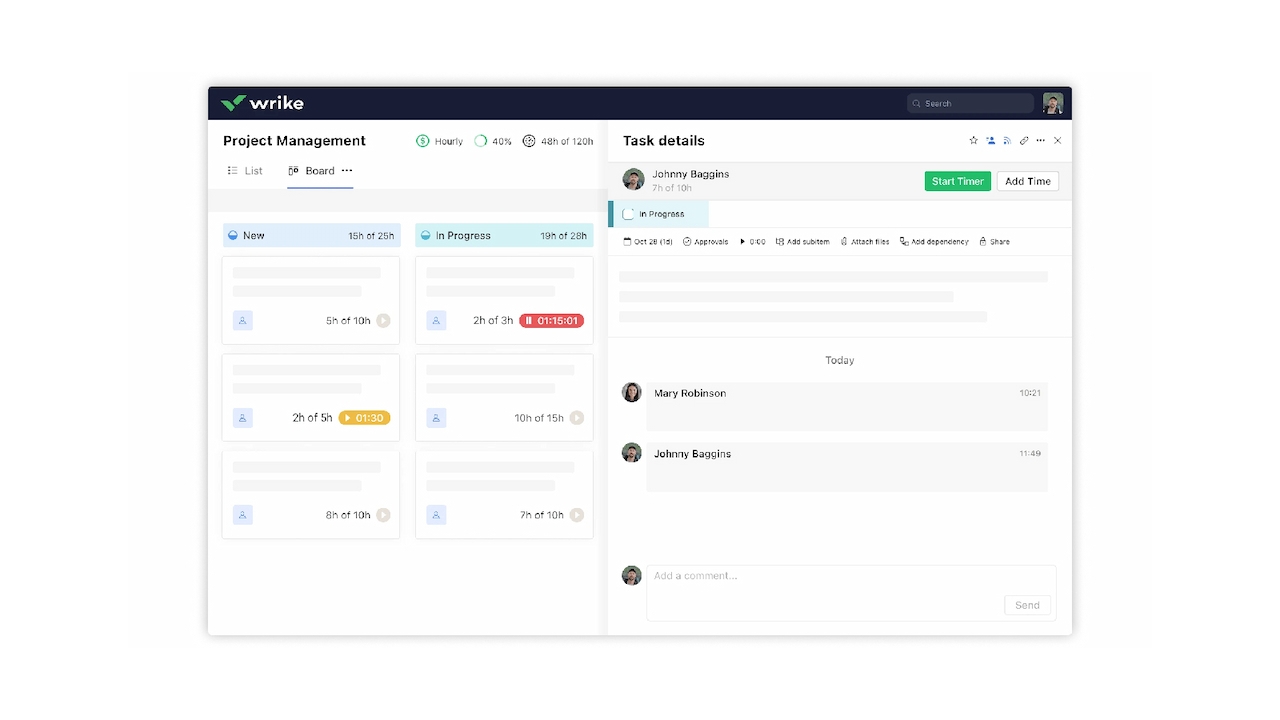
Wrike is widely used for managing projects, tasks, and team collaboration. As work progresses, many teams also need a clear way to understand how much time is being spent on tasks and projects. While it includes built-in time tracking and reporting, teams often find the native options limited for detailed insights, billable hours, or cross-project visibility. In these cases, a Wrike time tracking integration can help teams track time more accurately and gain better visibility into their work. Let’s take a closer look at how Wrike time tracking works and where it may fall short.
🧠 Does Wrike Have Built-In Time Tracking?
Yes, Wrike includes built-in time tracking, making it easy for most users to log the time they spend on tasks. You can either:
- ⏱️ Start a timer directly on a task, which runs until you pause it or switch to another task
- ✍️ Manually add time entries with the hours and minutes worked
All time entries are recorded in the project’s timelog and activity stream, giving teams basic visibility into task-level work.
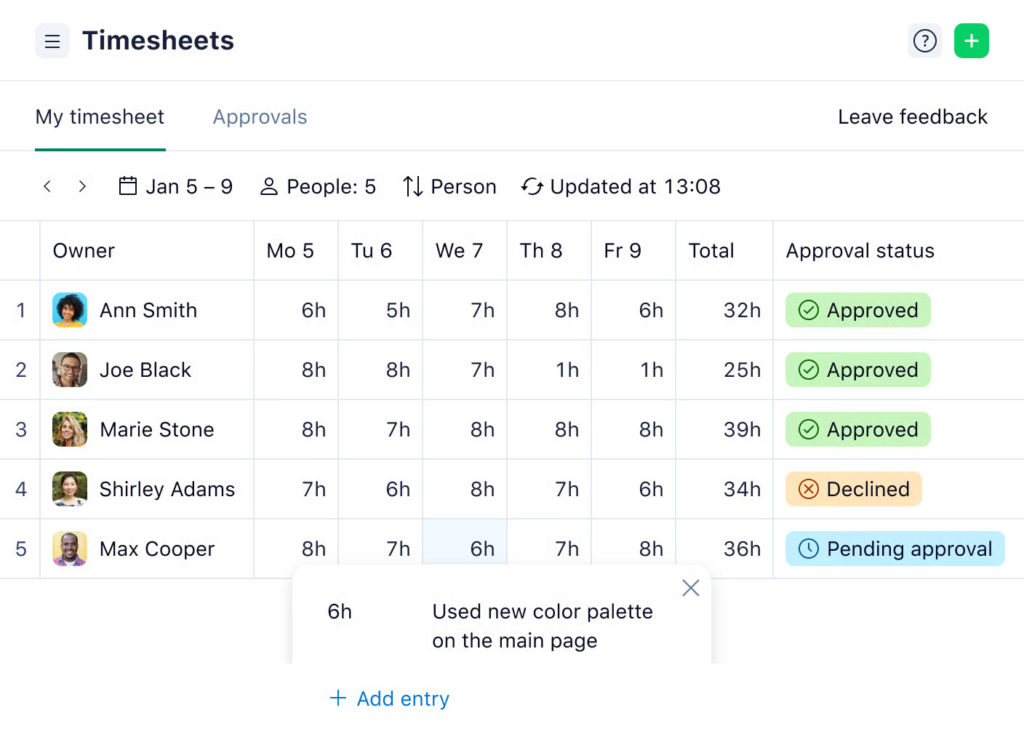
That said, native time tracking is mainly designed for simple workflows and comes with a few limitations:
- 📊 Limited cross-project reporting
- 💼 Low flexibility for billable vs non-billable hours
- 👥 Basic insights for larger teams
Let’s see how time tracking works in Wrike more generally before jumping to its limitations in more detail.
⏰ How Wrike’s Native Time Tracking Works
Wrike includes a built-in time tracker available to all users except Collaborators and Viewers. It’s designed to help teams record how much time is spent on individual tasks, using either a live timer or manual time entries.
Time in Wrike is always tracked in hours and minutes and is tied directly to tasks, which shapes how reporting and oversight work later on.
Tracking time with the task timer
The most common way to log time in Wrike is by using the task timer:
- ⏱️ start the timer directly from a task in the Item view
- ▶️ use play and pause controls to start or stop tracking
- 🔄 the timer keeps running until you pause it or switch to another task
- 🌐 closing your browser does not stop the timer
Wrike only allows one active timer at a time. If you start tracking time on a different task, the previous timer is paused automatically. You can always check which task is being tracked from the timer menu at the top of your workspace.
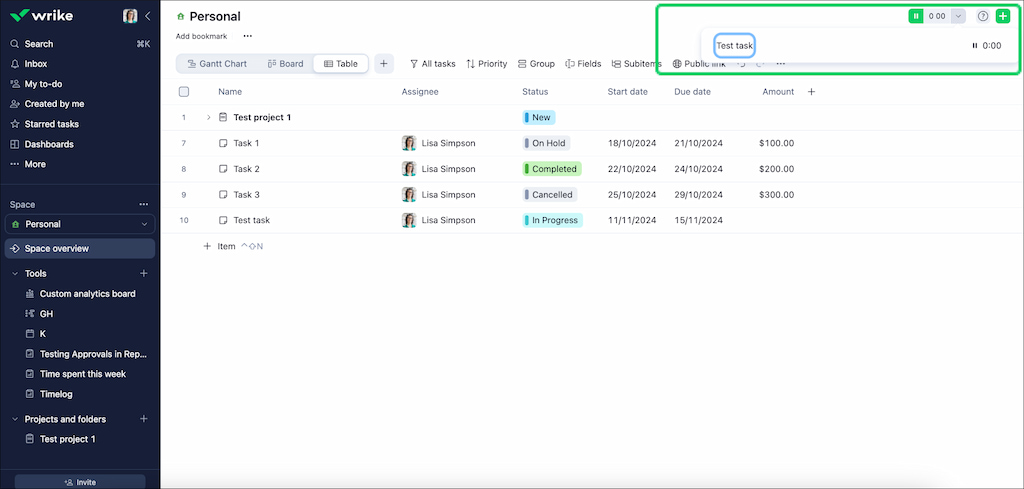
When you stop the timer, Wrike prompts you to review the entry, add optional comments or categories, and save it to the timelog.
Adding time manually
Wrike also lets users log time manually, which is useful for past work or corrections:
- ✍️ enter hours and minutes directly on a task
- 📅 select the date the work was done
- 🏷️ add time-tracking categories and comments if needed
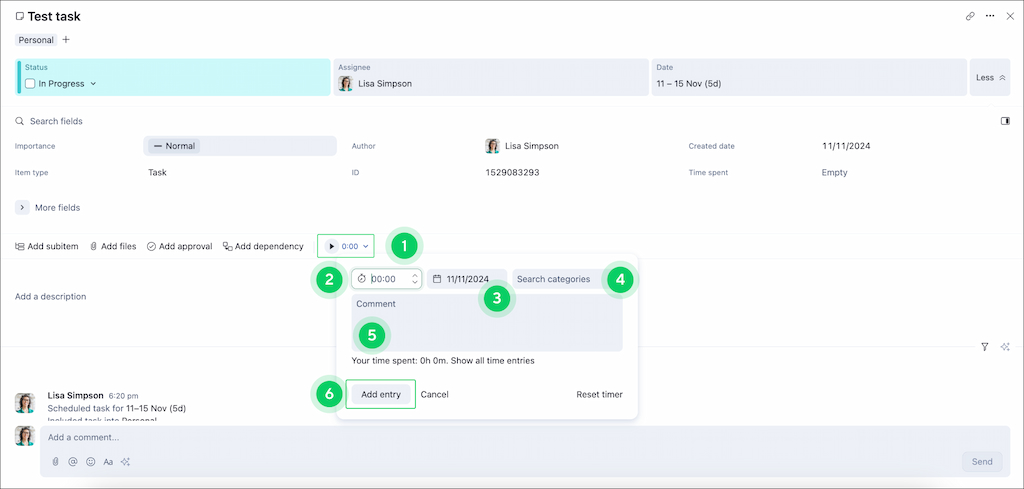
Manual entries give teams flexibility, especially when work wasn’t tracked in real time.
Where time entries appear
All tracked time is stored in two main places:
- 📄 the task’s activity stream, showing when time was logged
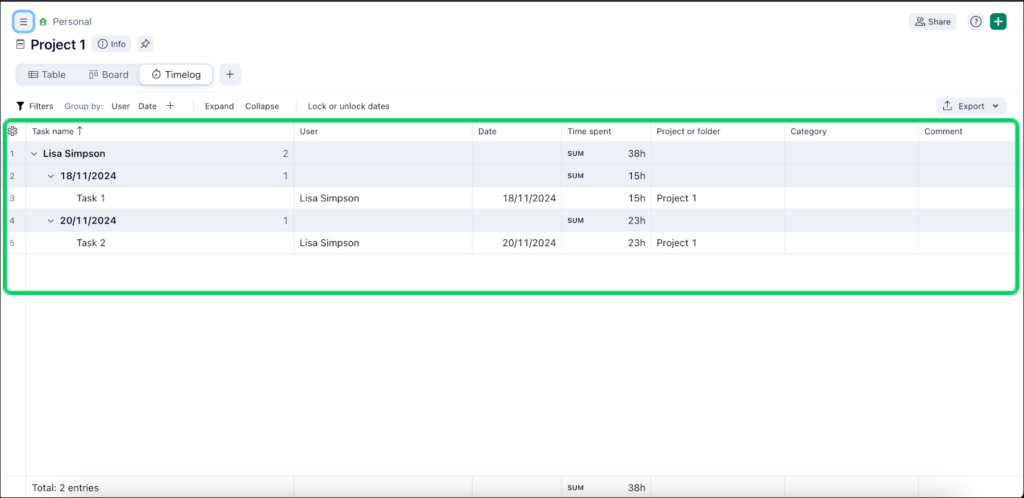
- 📊 the Timelog view, which aggregates entries across folders, projects, or spaces
In Timelog view, managers can see who logged time, how much was spent, on which task, and when. On higher-tier plans, this view can also include billing status, approval status, and export indicators.
Managing and controlling time entries
Wrike includes basic controls for managing tracked time, depending on account type and permissions:
- 👥 admins and designated users can edit or add time entries for others
- 🔒 time periods can be locked to prevent edits before payroll or invoicing
- 🏷️ time-tracking categories can be created to organize work (for example, meetings, delivery, or review)
Access to editing other users’ time entries depends on account-level permissions and project access roles, which can limit or allow edits on a per-project basis.
Wrike time tracking reports
Using Timelog view filters, teams can report on time spent by:
- user
- date range
- project, folder, or space
- time-tracking category
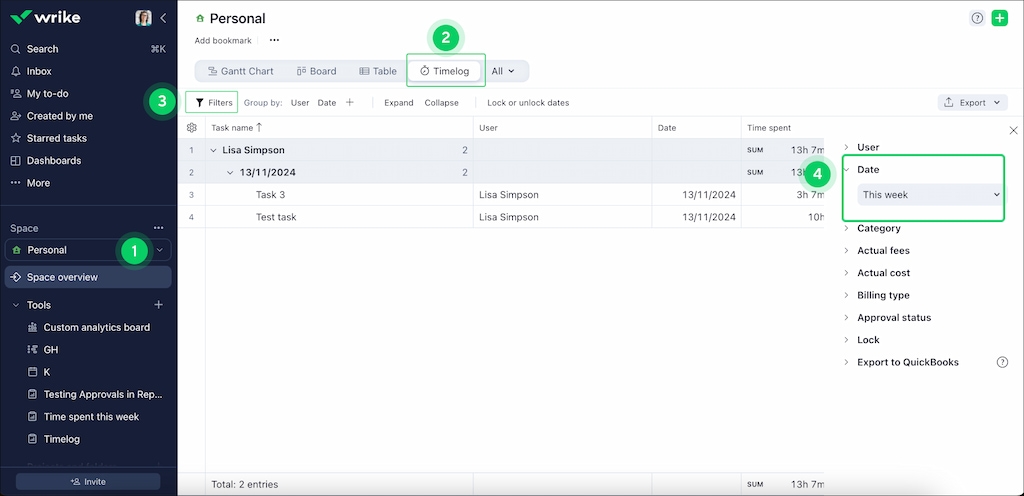
This works well for basic oversight, but reporting is still closely tied to Wrike’s task structure and plan limits.
✅ Explore specialized time tracking apps can help teams stay accurate without adding overhead.
⛔️ Limitations of Wrike Time Tracking
Wrike’s built-in time tracking works well for simple tasks and small teams, but it has some limitations for managing time across larger projects or teams:
- ✅ Limited cross-project reporting: native reports focus on individual tasks or single projects, making it difficult to see overall team performance
- 💰 Billable vs non-billable hours: tracking client-specific or billable hours often requires manual work, which can be cumbersome for agencies or consulting teams
- 📈 Scalability issues: managing multiple projects or larger teams can become complex without dashboards that give team-wide visibility
- ✏️ Manual adjustments: while manual time entries are possible, bulk adjustments or reconciling entries across tasks can be time-consuming
- 📊 Basic insights: Wrike’s native reporting gives a general sense of time spent but lacks advanced analytics, customizable reports, or automated summaries
➡️ For teams that need more detailed insights, accurate reporting, or better control over billable hours, a Wrike time tracking integration like Everhour can extend Wrike’s capabilities and make time management across projects and clients much easier.
🟢 Everhour: Supercharging Time Tracking in Wrike
While Wrike’s native time tracking handles basic needs, Everhour’s time tracker adds advanced features to make time management easier and more accurate:
- ⚡ Quick setup: connect Wrike with Everhour and your projects sync automatically, no manual setup needed
- 👥 Easy for teams: time tracking controls appear directly inside Wrike, so employees don’t need to learn a separate app
- ⏱️ Accurate tracking: timers and in-app logging reduce the risk of missed or forgotten hours, you can also you a free time card calculator for better bookkeeping
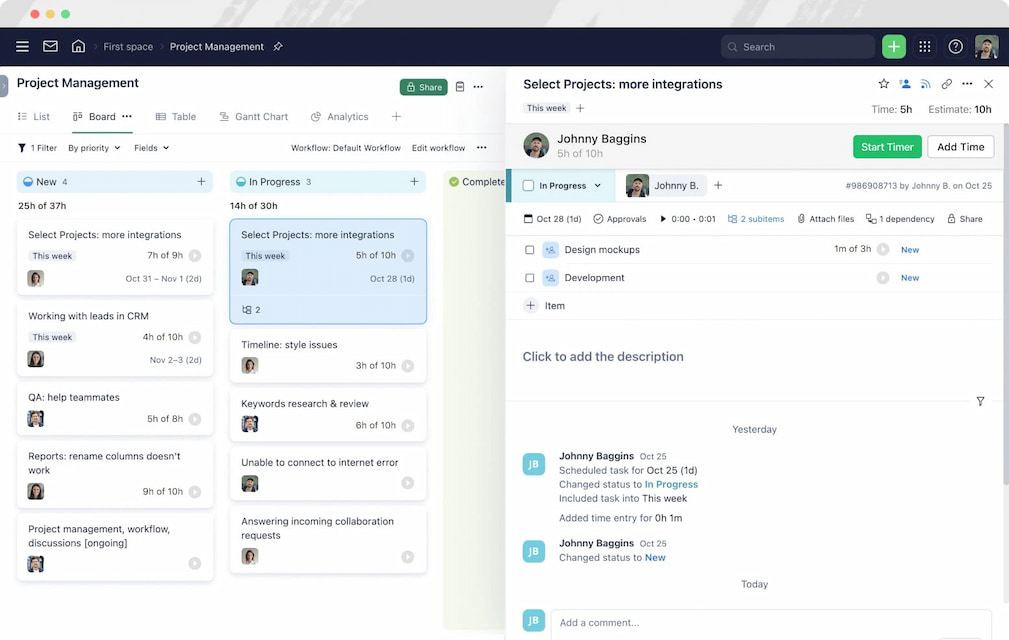
- 📊 Estimates and progress: Everhour shows time vs. estimate next to task titles, helping teams stay accountable
- 🔄 Automatic updates: any new project or renamed task in Wrike is reflected automatically in Everhour reports
- 📈 Detailed reporting: customize reports using Wrike task data, including tags, sections, and custom fields for deeper insights
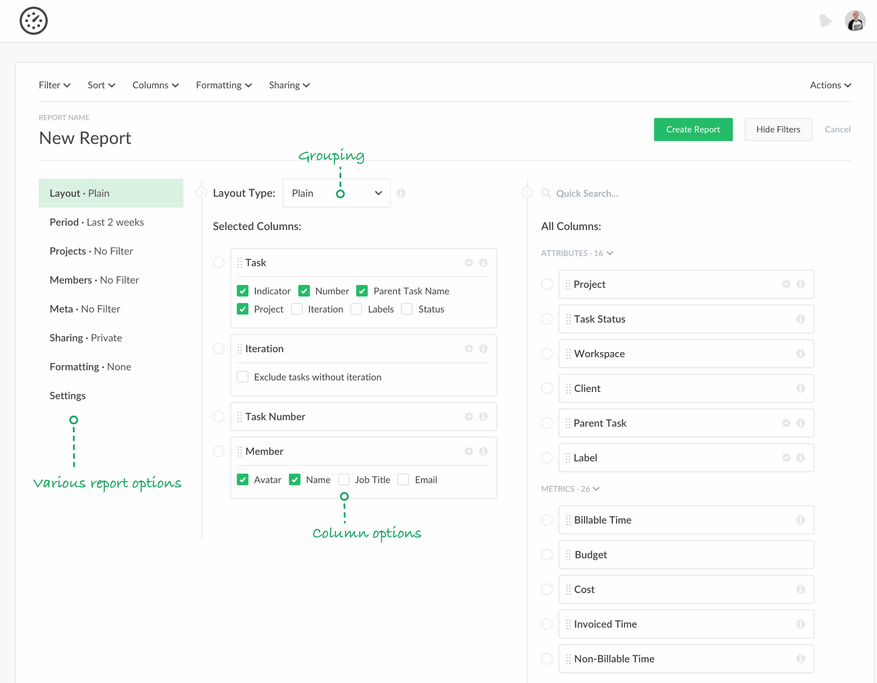
- 💼 Billing and invoices: pull tracked billable hours and expenses directly into invoices (or use its free invoice generator)
Check out its pricing before you decide to sign up.
How to sync up Everhour with Wrike
- Create an Everhour account: sign up for free and install the browser extension (Chrome, Firefox, Safari, Edge)
- Connect Wrike and Everhour: projects sync automatically, and any updates in Wrike reflect in Everhour reports
- Invite your team: only invited team members track time and see progress; clients or guests remain unaffected
- Track time inside Wrike: use the timer or log time manually and see each employee’s contributions
- Use the browser extension: start timers, edit time, or update estimates directly from your toolbar
- Build custom reports: select columns from Wrike data to generate tailored reports for projects or clients
Why teams choose Everhour over native Wrike tracking
| Feature | Everhour | Wrike |
|---|---|---|
| Log time on behalf of someone | ✅ | ❌ |
| Timesheet approval | ✅ | ❌ |
| Individual time estimates | ✅ | ❌ |
| Project budgeting | ✅ | ❌ |
| Customizable time reports | ✅ | ❌ |
| Invoicing | ✅ | ❌ |
❓Common Wrike Time Tracking Questions
Who can use Wrike’s built-in time tracker?
All users except Collaborators and Viewers can log time on tasks.
Can I track time on multiple tasks at once?
No, Wrike only allows tracking time on one task at a time. Starting a timer on a new task automatically pauses the previous one.
How to track time in Wrike?
Time is logged in hours and minutes, either via the task timer or by manually entering time entries with optional comments and categories.
Will closing my browser stop the timer?
No, the task timer continues running even if you close your browser until you pause it or switch to another task.
Can I adjust time after logging it?
Yes. You can manually add or edit time entries, including adjusting minutes, changing dates, or adding comments.
Can I get detailed Wrike time tracking reports?
Wrike provides basic task- and project-level reports, but for advanced reporting, cross-project visibility, or client billing, many teams use a task-based time tracking integration like Everhour.
🔎Choosing the Right Way to Track Time in Wrike
Wrike’s built-in time tracking covers the basics and works well for teams that need simple task-level tracking. You can log hours, use a timer, and get a general overview of how you spend time.
As teams grow, work across multiple projects, or start billing clients, those basics often stop being enough. That’s when adding more structure around estimates, approvals, budgets, and reporting becomes important. Tools like Everhour extend Wrike’s native time tracking by adding deeper visibility into time, costs, and team workloads. All without forcing teams to change how they work in Wrike.
The right setup depends on how your team works today—and how you expect it to scale tomorrow.
Check out how Wrike compares to other PM giants like Wrike vs Basecamp, Wrike vs or Wrike vs Monday in our breakdowns of these tools!
Learn more about Wrike project management in our guide!

Maria
A dedicated content enthusiast with extensive experience in international teams and projects of all sizes. Maria thrives on creativity and attention to detail, fueled by a love for fantasy novels, music, classic black-and-white films, and always finding ways to make things better.