


What Is Wrike? Plan, Track, And Manage Projects Easily
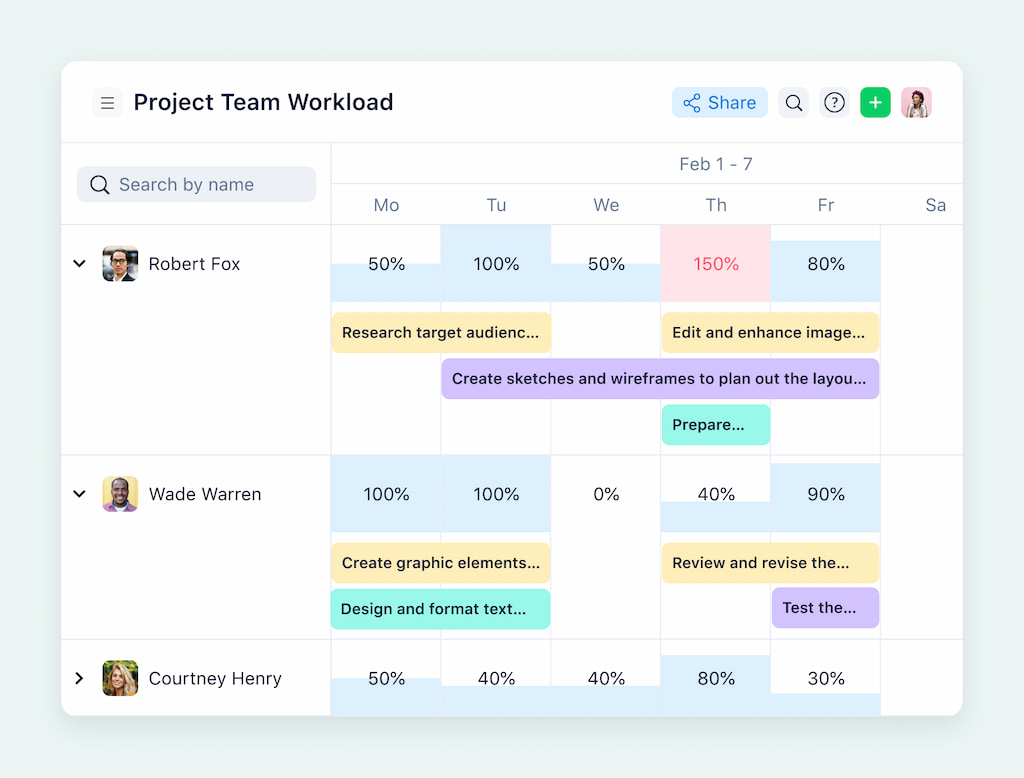
What is Wrike? Wrike is a project management and work management platform that helps teams plan work, track progress, and collaborate in one place. It’s designed for teams that need more structure than basic task lists, but still want flexibility as projects and workflows evolve. It’s commonly used by marketing teams, agencies, product teams, and cross-functional groups that need clear ownership, visibility, and coordination.
In this article, we’ll explain what Wrike is, how it works, what it’s used for, and which teams benefit from it most—along with a look at its core features and where teams often look for additional tools as their needs grow.
❓ What Wrike Is And How It Works
Wrike is a cloud-based work management platform that helps teams plan, organize, and track work in real time. It’s used across industries because it provides a single hub to manage tasks, collaborate with teammates, and gain visibility into projects—without relying on scattered spreadsheets, emails, or disconnected tools.
How Wrike organizes work
- 📁 Projects and folders – group work by goal, client, or department.
- 📝 Tasks – break projects into actionable steps that can be assigned, prioritized, and tracked.
- 🔄 Workflows – define task progress from start to finish with clear statuses.
- 👀 Views – see work from different angles with lists, boards, timelines, or dashboards.
Why teams use Wrike
- 🤝 Collaboration made simple – everyone sees updates immediately, from task status changes to deadlines.
- 🔍 Cross-team visibility – multiple teams or stakeholders can track progress without confusion.
- 📈 Scalable management – works for small projects and complex initiatives with multiple teams.
By combining structure with flexibility, Wrike lets teams plan, execute, and monitor work efficiently, keeping performance and progress visible at every step. It’s more than a project management tool—it’s a central hub for team productivity.
💡 Core Project Management Features In Wrike
📝 Task and project management
Wrike lets teams create detailed tasks that include descriptions, assignees, due dates, and attachments. Each task can live in multiple folders or projects, which makes it simple to manage cross-functional work without creating duplicates or losing track of responsibilities.
Tasks in Wrike are more than just to-dos—they are actionable units of work that give teams clear visibility into what needs to be done, by whom, and by when. This structure helps reduce confusion and keeps everyone aligned, especially when multiple teams collaborate on the same projects.
- Dependencies & milestones – Plan tasks in the correct sequence. Dependencies ensure one task doesn’t start before the previous one is complete, while milestones mark critical points in a project timeline.
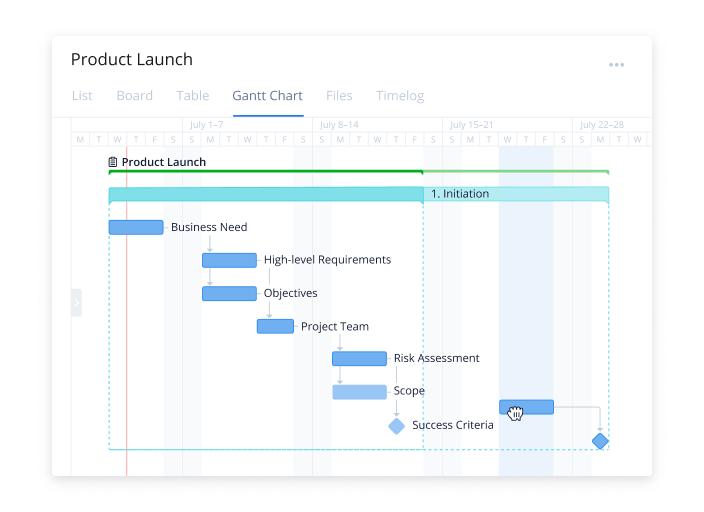
- Subtasks and checklists – Break large tasks into manageable steps to track progress more granularly.
- Custom priorities – Assign urgency or importance levels to tasks to help teams focus on what matters most.
- Activity tracking – See who updated a task, when it was updated, and what changed, giving managers and stakeholders a clear view of project progress.
- Ideal for larger or complex projects – Wrike’s task management works well for projects with multiple stakeholders, overlapping timelines, or intricate dependencies, keeping everything on schedule and organized.
Wrike makes task and project management efficient and scalable, supporting teams from small initiatives to enterprise-level projects.
🔄 Custom workflows
Wrike workflows are not just for tracking—they ensure work follows your team’s processes, making approvals, handoffs, and reviews more structured and predictable.
- Perfect for teams needing approvals or handoffs – Assign tasks to the right people at each stage and ensure nothing slips through the cracks.
- Automation – Automatically assign tasks, send reminders, or update statuses when certain conditions are met, reducing manual effort and human error.
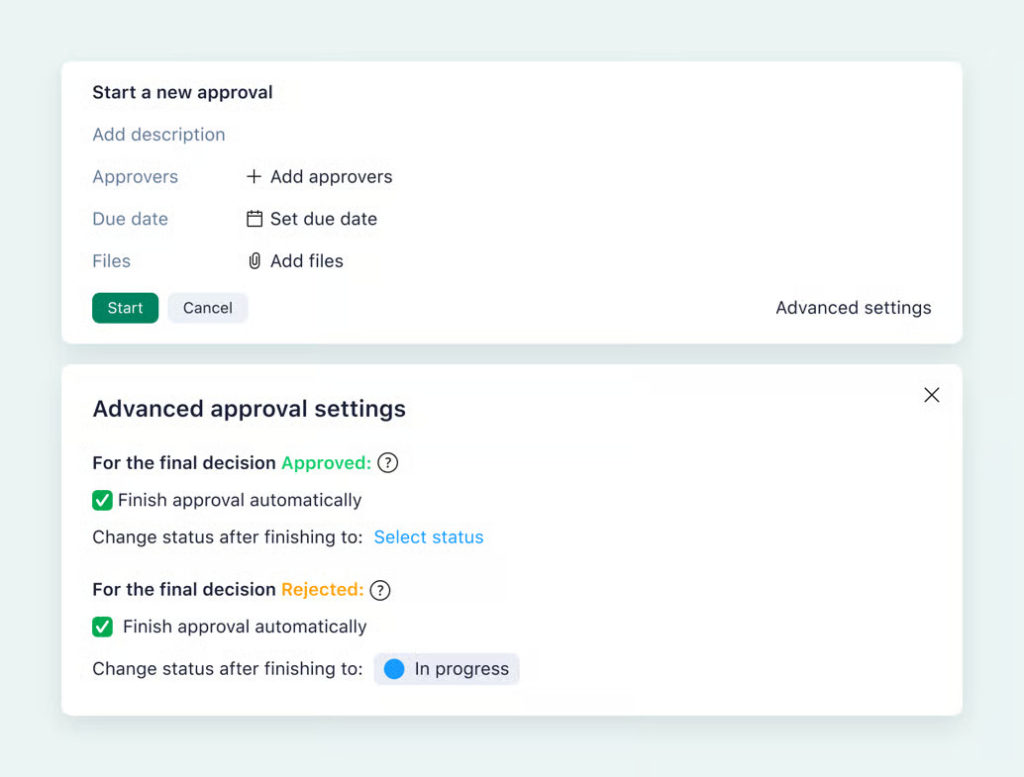
- Customizable stages – Add as many statuses as your team needs to match the complexity of your workflow.
- Consistency across projects – Standardized workflows ensure every team follows the same process, making reporting and project tracking more reliable.
- Improved accountability – With clear stages and automated notifications, team members always know what’s expected of them and when.
By combining clarity, structure, and automation, Wrike’s workflows streamline processes and save time, allowing teams to focus on delivering results rather than micromanaging tasks.
👀 Views and dashboards
Wrike provides multiple ways to visualize your work. Teams can see exactly what’s happening across projects, tasks, and teams. Choosing the right view helps balance detail-oriented tracking with big-picture oversight.
- List view – Ideal for detailed task tracking, showing assignees, due dates, priorities, and statuses in a structured list. Perfect for day-to-day task management.
- Board view – A Kanban-style workflow that helps teams see work moving through stages. Great for visualizing bottlenecks and managing ongoing processes.
- Timeline / Gantt view – Lets teams plan and track dependencies, see how tasks overlap, and adjust schedules to meet deadlines. Essential for complex projects.
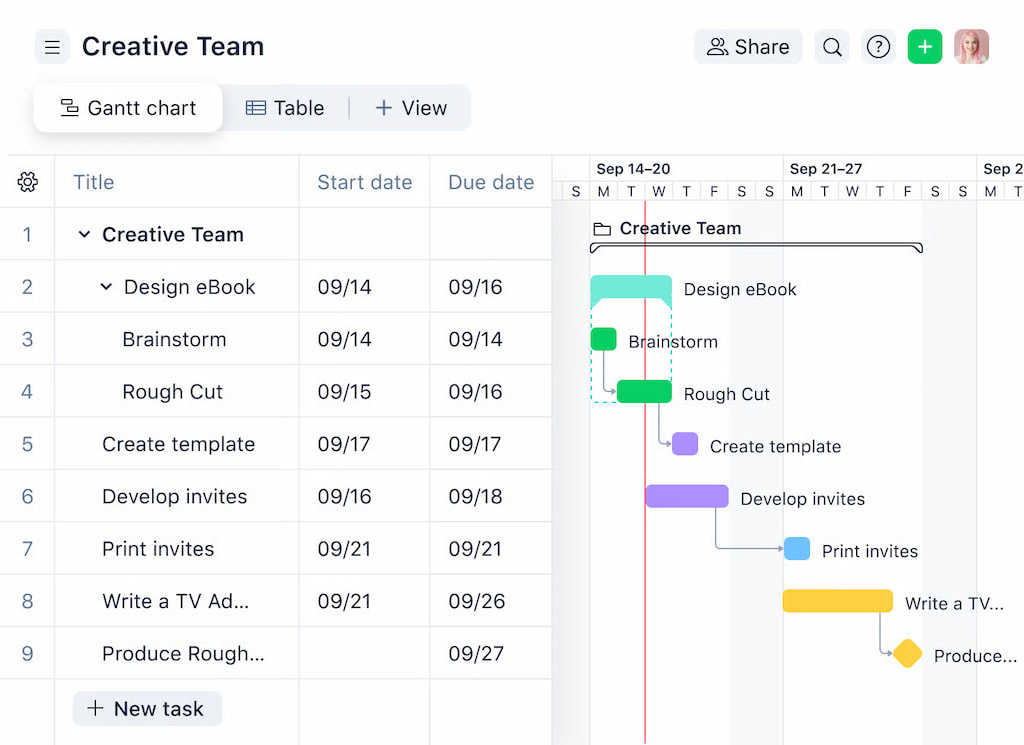
- Dashboards – High-level views of project health, workloads, and overdue tasks, all in one place. Managers can create Wrike dashboards tailored to teams, projects, or specific metrics.
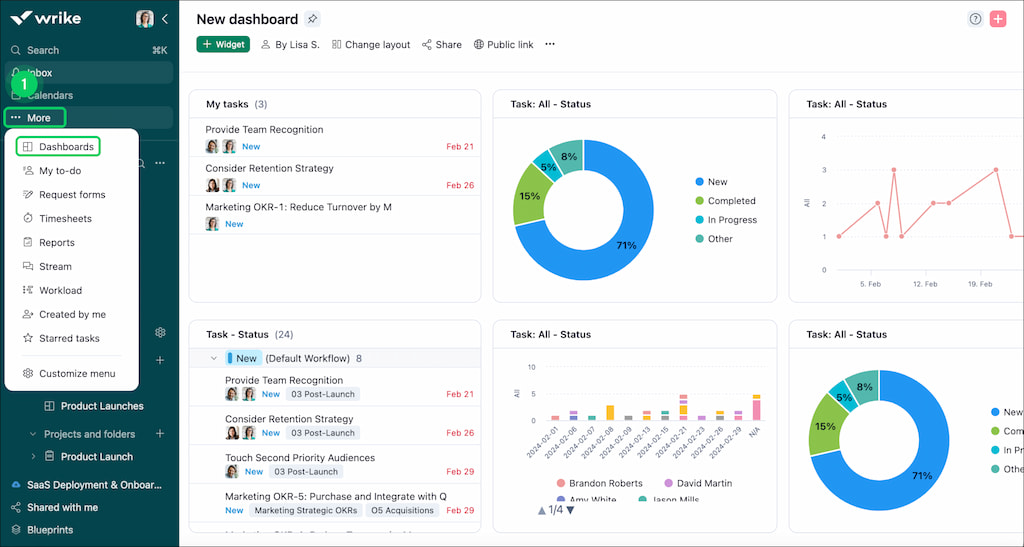
Wrike ensures both team members and managers stay aligned, giving a clear picture of progress, priorities, and potential risks at any moment.
📊 Reporting and automation
Wrike comes with built-in reporting and automation tools that help teams stay on top of work without extra manual effort. These features are designed to give real-time insights and reduce repetitive tasks so teams can focus on getting work done.
- Pre-built and custom reports – Summarize task status, progress, and workload in a few clicks. Teams can filter by project, assignee, priority, or custom fields to get exactly the data they need.
- Dashboards for reporting – Combine multiple widgets and reports in a single view to track project health, team performance, and deadlines at a glance.
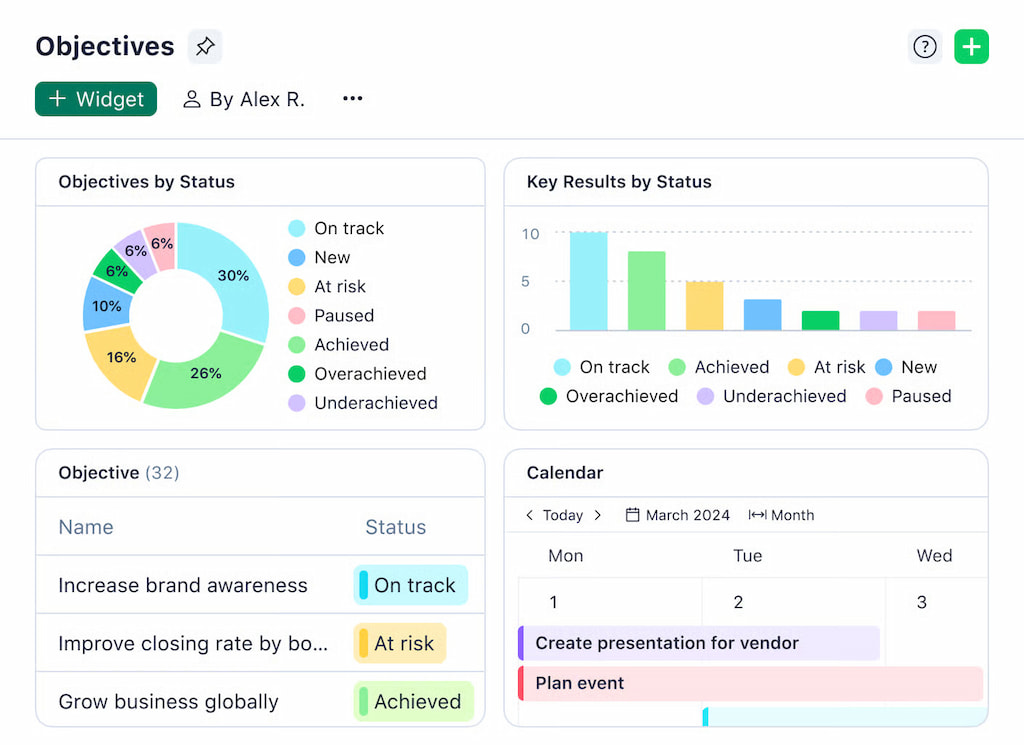
- Automation – Reduce manual work by automatically:
- Updating task statuses
- Assigning tasks based on conditions
- Sending reminders or notifications
- Moving tasks between folders or projects
With Wrike’s reporting and automation, teams can catch delays early, optimize resource allocation, and ensure consistency across projects. This helps managers make data-driven decisions and keeps everyone aligned without constantly chasing updates.
⏱️ Time and resource management
Wrike provides high-level time tracking and resource allocation:
- Track hours logged and workloads
- Balance resources across tasks and teams
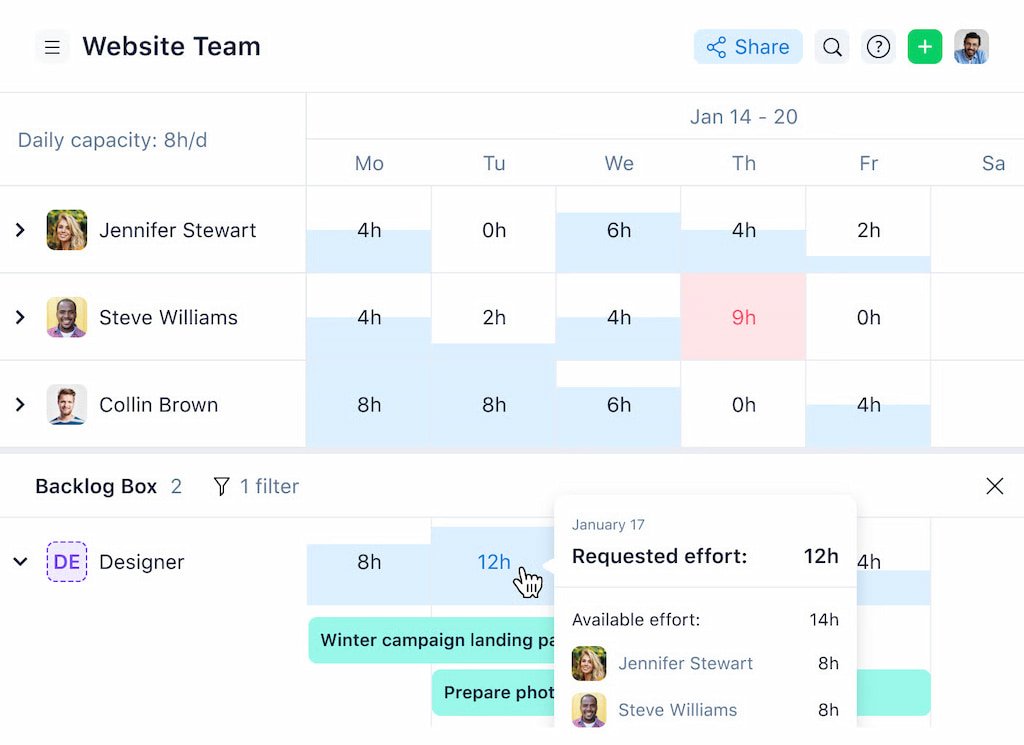
For more detailed cost, effort, and performance analytics, use integrations like Everhour. Learn more in our Wrike vs Everhour comparison!
🤝 Collaboration and communication
Keep discussions within context:
- Comments, mentions, and file attachments stay on the task itself
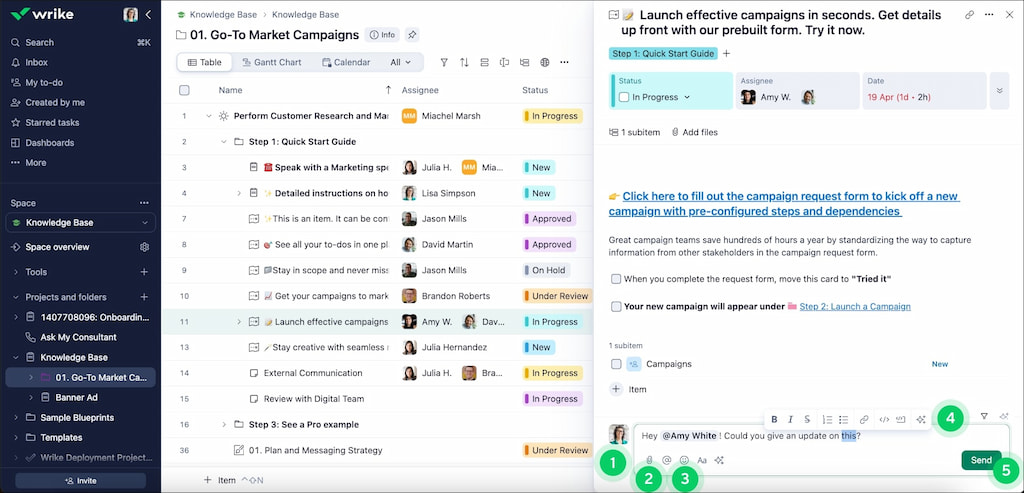
- Real-time updates alert team members to changes
🔌 Integrations and extensibility
Wrike can connect with the tools your team already uses, letting you extend its capabilities without changing your workflow much. Wrike integrations make it easier to streamline workflows, reduce context switching, and gain more visibility into projects.
- CRM & communication – Connect with tools like Salesforce or Slack to keep customer data and team conversations aligned with tasks and projects.
- File storage – Integrate with Google Drive, SharePoint, or Adobe CC so files are easily accessible within tasks, keeping work centralized.
- Business intelligence – Pull data into platforms like Tableau or Google Sheets to analyze project metrics and create custom dashboards.
- Time and cost tracking – A time tracker like Everhour let teams track time via its Wrike time tracking integration, monitor budgets, and report on project costs directly inside Wrike.
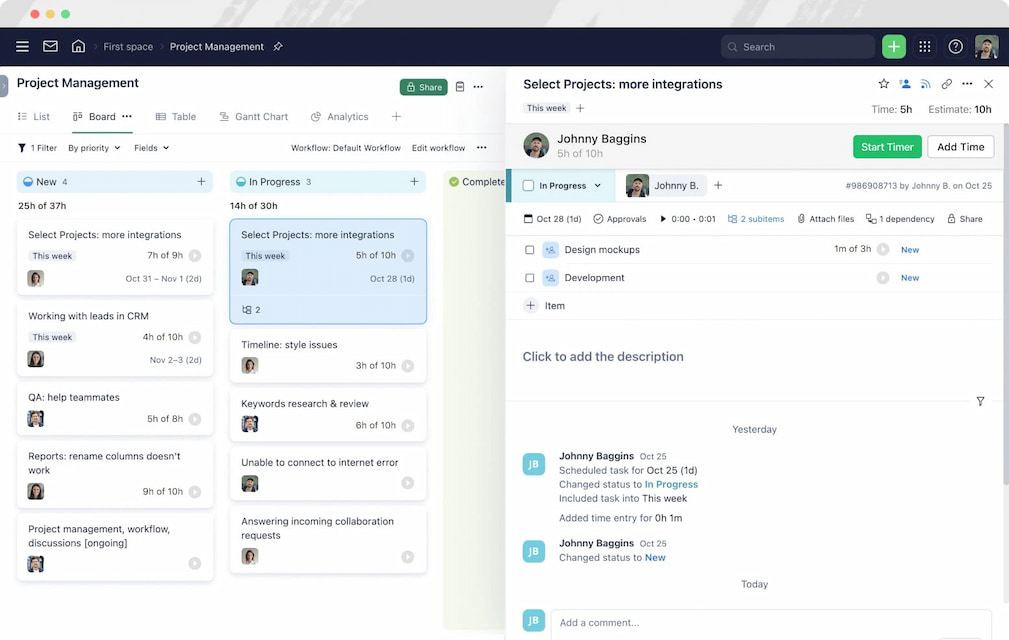
Integrations extend functionality without changing Wrike’s core workflow.
🤖 Wrike AI
Wrike AI brings smart automation and insights directly into your project management workflow. It helps teams work faster and make better decisions by leveraging AI-powered suggestions and predictions.
- Task automation – Wrike AI can automatically suggest task assignments, deadlines, or priorities based on historical patterns.
- Content and task summaries – Quickly summarize project updates, emails, or comments to save time on manual reading.
- Predictive project insights – Identify tasks that are at risk of delay or projects that may go over budget before issues arise.
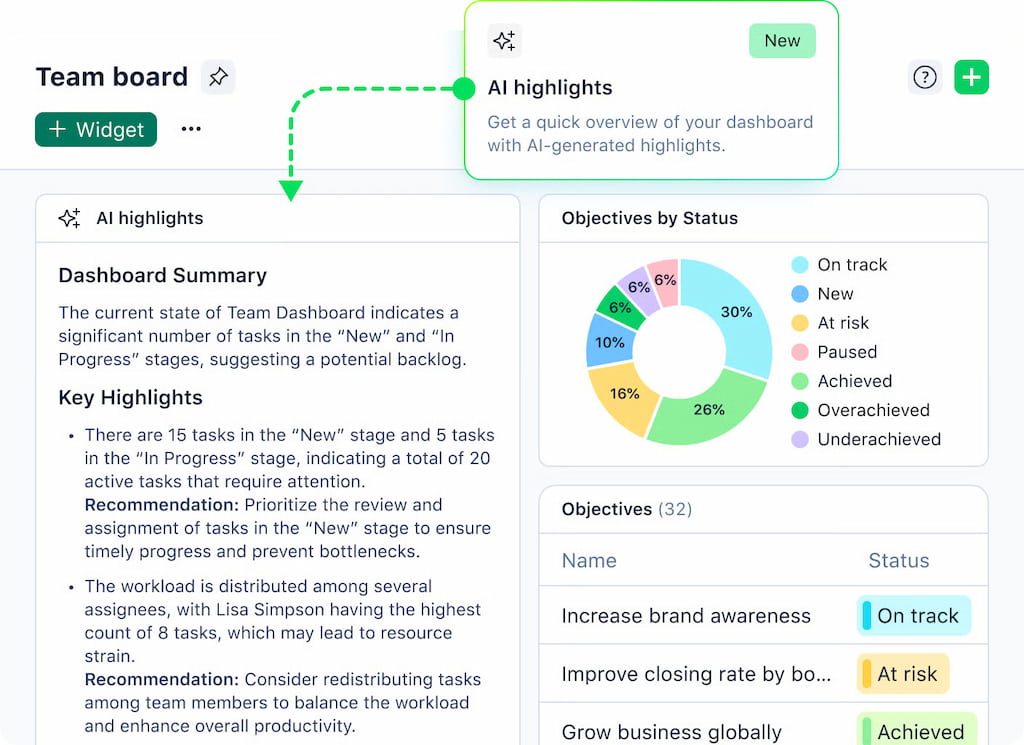
- Enhanced reporting – AI helps highlight trends or anomalies in team performance without manually sifting through reports.
With Wrike AI, teams gain proactive guidance, reducing manual guesswork and improving project execution. It’s especially useful for large or complex projects where keeping track of dependencies and progress can be overwhelming.
⚠️ Risk management
Managing risks in projects is critical, and Wrike provides tools to identify, track, and mitigate risks before they impact timelines or budgets.
- Risk tracking templates – Teams can create custom risk registers to track potential issues and assign ownership.
- Dependencies and alerts – Identify tasks that may be impacted by delays elsewhere in the project, helping prevent bottlenecks.
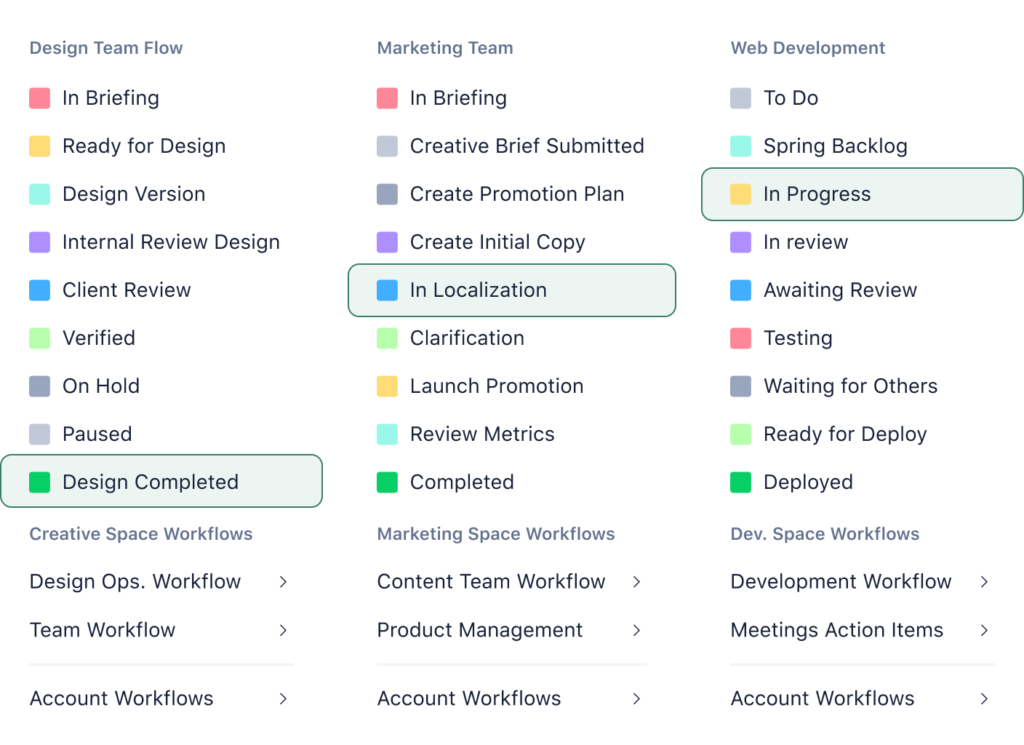
- Reporting on risks – Dashboards and reports can show high-risk tasks or projects at a glance.
- Collaborative mitigation – Teams can discuss, update, and assign risk responses directly inside Wrike tasks.
By integrating risk management into the workflow, Wrike helps teams stay ahead of potential problems and maintain project stability, especially in complex or multi-team environments.
👥 Who Wrike Works Best For
Wrike shines for teams that need flexible project management with visibility across people and tasks. It works well in environments where collaboration, structure, and clear accountability matter.
- Small to mid-size teams – Can plan and track projects without complex IT setups.
- Cross-functional project work – Marketing, product, or operations teams can stay aligned while sharing tasks and deadlines.
- Teams needing flexible workflows – Custom statuses, approvals, and dashboards adapt to how the team actually works.
💡 Examples:
- Marketing teams managing campaigns across multiple channels
- Product teams tracking features from design to release
- Agencies handling multiple client projects simultaneously
Wrike tends to work best for small to mid-sized teams, as well as larger organizations that need structure and visibility across many projects at once.
⚠️ Common Limitations of Wrike
While Wrike is powerful, teams often run into areas where it doesn’t fully meet their needs. Understanding these limitations helps teams decide whether to extend Wrike or consider Wrike alternatives.
- Limited cost and budget tracking – Wrike’s native tools cover basic budgeting but don’t provide deep visibility across projects or granular cost tracking.
- Gaps between time and effort – Tracking how long tasks take versus effort invested isn’t always straightforward.
- Reporting complexity as teams scale – Cross-project reports and aggregated dashboards can get complicated for larger teams.
- Managing multiple tools side by side – Teams often use Wrike alongside other apps, which can cause context switching and manual updates.
Wrike limitations often push teams to add integrations that enhance Wrike time tracking, reporting, and project visibility—without replacing the platform entirely.
🔌 Extending Wrike With Integrations
As projects grow, teams often find Wrike’s native features aren’t enough on their own. That’s where integrations come in—they let you enhance Wrike without changing how you manage work. Integrations help teams solve common challenges:
- Track time accurately – Native Wrike tracking is simple, but tools like Everhour let you track time inside tasks, compare estimates vs actuals, and monitor budgets.
- Get better visibility – Pull task and project data into dashboards or business intelligence tools like Tableau or Google Sheets for deeper analysis.
- Manage costs and billing – Link project hours, expenses, and budgets to your invoicing tools to avoid surprises.
- Communicate without switching apps – Integrations with Slack, Teams, or email keep project updates flowing where your team already works.
- Automate workflows – Tools like Zapier, Workato, or Unito can sync tasks, trigger notifications, or move work between platforms automatically.
Popular integration categories
| Category | Example Tools | How It Helps |
|---|---|---|
| Time tracking | Everhour | Track hours, compare estimates vs actuals, monitor budgets |
| CRM & communication | Salesforce, Slack | Keep customer and team updates connected to tasks |
| File storage | Google Drive, SharePoint | Attach and manage files without leaving Wrike |
| Business intelligence | Tableau, Google Sheets | Build custom dashboards and analytics |
| Automation | Zapier, Workato | Sync tasks, automate repetitive actions |
Integrations let teams work smarter, not harder. They reduce manual work, cut down on context switching, and give managers the insights they need to make faster, more informed decisions.
💰 Wrike Pricing Overview
Wrike offers several pricing tiers to fit different team sizes and needs, from small teams just starting out to large organizations managing complex projects.
| Plan | Price (per user/month) | Key Features | Best For | Notes |
|---|---|---|---|---|
| Free | $0 | Web, desktop, mobile apps; project & task management; board & table views; AI Essentials; active task limitations | Teams just getting started | No credit card required |
| Team | $10 | 2–15 users; folders & nested projects; unlimited tasks/subtasks; shared space; dashboards; unlimited custom fields; 50 automation actions/user/month; cross-tagging; Gantt, calendar, chart views; integrations & API; AI Essentials; 2 GB storage/user | Small teams | Most popular plan |
| Business | $25 | 5–200 users; all Team features plus: project blueprints, unlimited request forms, approvals, resource & capacity planning, 200 automation actions/user/month, custom item types, file & video proofing (30+ formats), real-time reports, user groups & permissions, AI Elite, Adobe Creative Cloud extensions, external requester collaboration, use case templates; 5 GB storage/user | Growing teams & organization-wide use | Highly customizable |
| Enterprise | Custom | 5–unlimited users; all Business features plus: SAML SSO, 2FA, password policies, custom access roles, user audit reports, 1000 automation actions/user/month, 10 GB storage/user | Large organizations | Enterprise-grade security & scalability |
| Pinnacle | Custom | 5–unlimited users; all Enterprise features plus: locked spaces, advanced reporting & BI, advanced resource & capacity planning, utilization & performance dashboards, job roles, 1500 automation actions/user/month, budgeting & billable hours, project-level effort & time planning, HTML proofing & approvals, Wrike Datahub (10,000 records), QuickBooks & PowerBI integrations; 15 GB storage/user | Teams with complex projects | Most advanced plan |
❌ What’s usually missing on lower tiers
- Detailed time, cost, and budget tracking
- Advanced automation rules
- Enterprise-grade security and SSO
- Custom reports across multiple projects
For many teams, the free or lower-tier plans are great for starting out, but as work scales, paid plans or integrations (like Everhour) become essential to get full visibility into time, effort, and costs.
⚔️ Wrike vs Other Project Management Tools
Wrike is often compared to Asana, Monday.com, Smartsheet, and Notion—but it has its own approach:
- Wrike – task- and project-focused, structured workflows, cross-team visibility.
- Asana – simple task management, easy for small-to-medium teams, less control over complex workflows.
- Monday.com – highly visual boards and automations, flexible but can be less structured for dependencies (learn more about how these two tools compare in our Wrike vs Monday breakdown)
- Smartsheet – spreadsheet-style interface, strong for reporting-heavy teams and operational planning (read our Wrike vs Smartsheet comparison).
- Notion – highly flexible workspace, great for notes and lightweight project tracking, less suitable for complex task management (check out Wrike vs Notion)
💪 When Wrike makes more sense:
- You need structured projects with dependencies and milestones.
- Multiple teams or departments must collaborate in a single system.
- Approvals and workflow control are critical.
❓ Is Wrike The Right Tool For Your Team?
Before committing, teams should ask themselves:
- Do we need cross-team visibility and real-time updates?
- Are our projects complex enough to benefit from structured workflows?
- Will our team scale, making reporting and tracking more challenging?
- Do we already use other tools that need integration for time tracking, reporting, or billing?
✅ When Wrike is a good long-term fit:
- Projects involve multiple stakeholders and interdependent tasks.
- Teams rely on approvals, status tracking, and dashboards.
- Collaboration across departments is essential.
🔧 When integrations become important:
- Teams want time, effort, and cost visibility beyond what Wrike provides natively.
- Reporting across multiple projects or departments becomes cumbersome.
- You want to reduce context switching and centralize execution insights.
✅ What Is Wrike: Conclusion
Wrike is a powerful project management platform for teams that need structured workflows, cross-team visibility, and scalable task management. It works best for teams handling complex projects, coordinating multiple departments, and needing real-time updates.
At the same time, as projects grow, teams often need better visibility into time, effort, and costs—areas where native Wrike features may fall short.
Adding the right integrations, like Everhour for time tracking and cost management, can extend Wrike’s capabilities without forcing teams to switch tools or disrupt workflows.
Check out how Wrike product management works and how integrations can help it even more!

Maria
A dedicated content enthusiast with extensive experience in international teams and projects of all sizes. Maria thrives on creativity and attention to detail, fueled by a love for fantasy novels, music, classic black-and-white films, and always finding ways to make things better.