


Calendar View: See Your Tracked Time as a Day
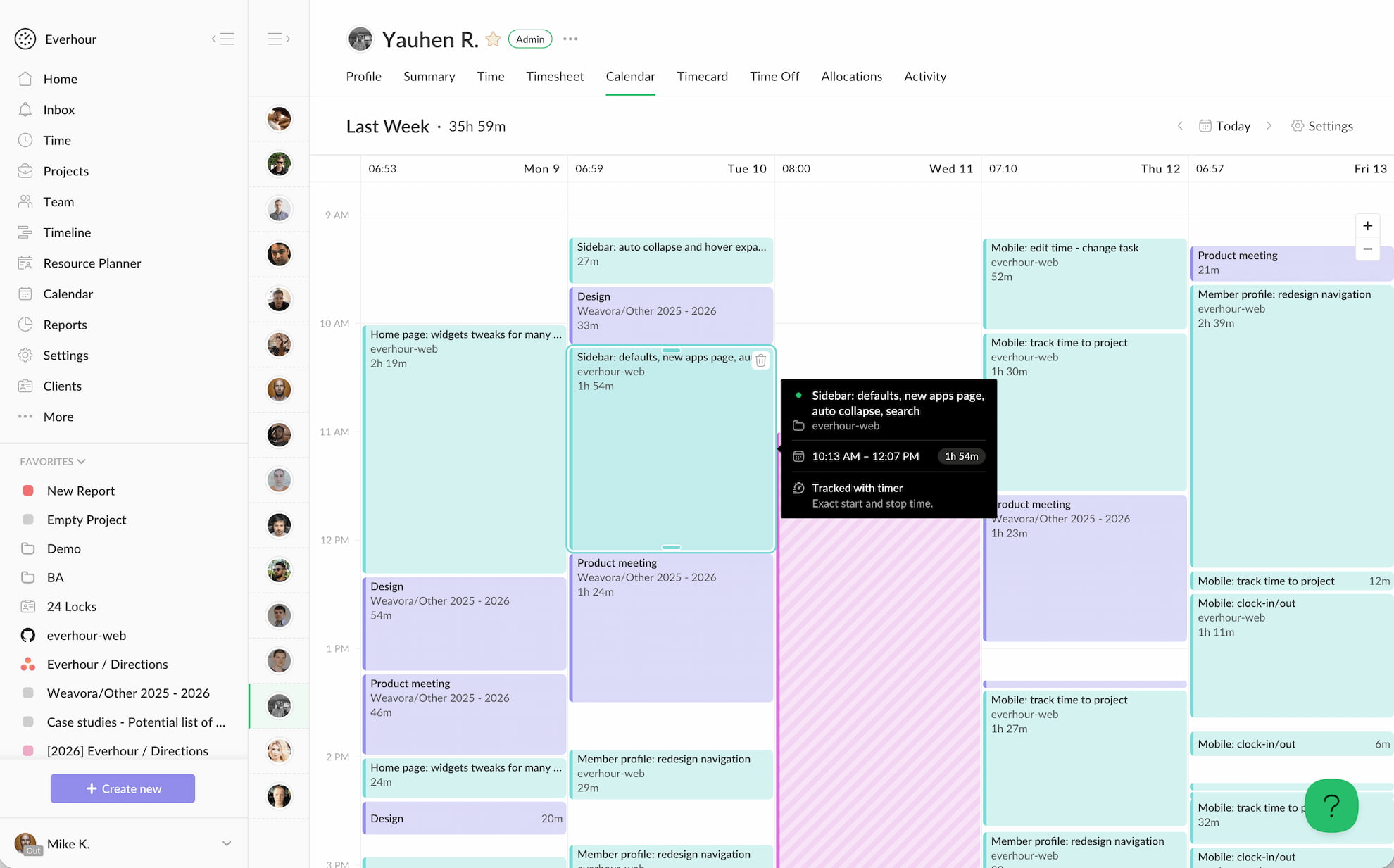
We’ve added a Calendar view to Everhour. It shows your tracked time as blocks on a week grid, so you can see not only how long you worked, but when.
A timesheet row like “Design review, 2h” is accurate, but it hides the shape of the day. Was it one focused block in the morning or four short bursts between calls? Did the day end at 6 PM or at 10 PM? Where are the gaps you forgot to log? The calendar answers these questions without changing how you track time. Keep using the timer, the browser extension or manual entries as before, and Everhour draws the day for you.
Where to find it
The calendar lives in two places:
- Time page. Open the new Calendar tab next to the list to see your own week.
- Member page. Open any teammate and switch to Calendar next to Summary and Timesheet. It shows the same week grid for that person.
Use ‹ Today › or swipe left and right to switch weeks. In Settings you can choose to show a work week or a full week, and the +/− buttons change the scale.
How Everhour places your time
Most time trackers make you enter a start and end time for every entry. That works for a calendar, but it slows down tracking.
We took a different route. In Everhour you keep logging time the quick way, as a duration or with a timer. The calendar builds itself from what you already do, using the history of each entry:
- Timer. When you stop a timer, we know exactly when it started and ended, so the block sits in the exact spot.
- Manual time, logged the same day. We assume you logged it right after finishing, so the block ends at the moment you added it. If that spot is taken, it moves to the nearest free slot.
- Manual time, logged later. If you add Monday’s time on Tuesday, we don’t know when you worked. The block starts at your team’s workday start (for example, 9:00 AM) and takes the first free slot after it.
- Time off. Vacation, sick days and other time off are placed from the workday start too.
When you edit or remove time, the matching blocks shrink or disappear. A block longer than the rest of the day is cut at midnight and fades out at the bottom.
Placement is a best guess, but in most cases it’s accurate enough, and you can always correct it. Once you move a block, the new position is saved and stays put.
Reading the calendar
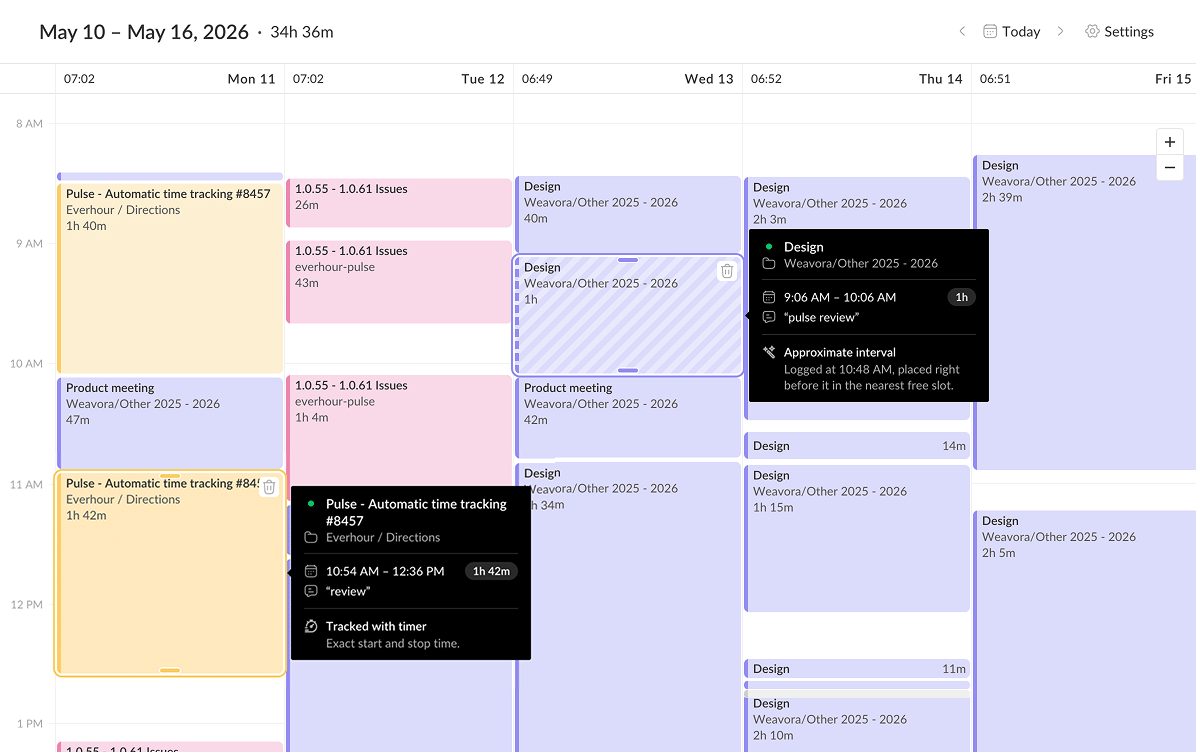
Colors show the project. Each block uses its project’s color. Projects without a color get one from the same palette as the project color picker, so the week stays easy to scan. Time logged without a task is grey, and time off uses the color of its time off type.
Stripes show how sure we are. Solid block – exact time. It was tracked with a timer, or you set the interval yourself in the calendar. Striped block – approximate. It was logged manually, and Everhour picked the most likely spot.
A running timer grows live with a timer icon and a fading bottom edge. A line marks the current time, and teammates’ running timers update every minute.
Hover any block for the details: task, project, time range, duration and comment. The tooltip also explains how the block was placed (“Tracked with timer”, “Approximate interval” or “Interval set manually”) and shows a lock if the time can’t be changed.
Edit your day right in the calendar
Your own calendar is fully editable:
- Move a block. Drag it to a different time, or to another day of the week.
- Change the duration. Drag the top or bottom edge of a block.
- Add time. Select a free range with mouse, pick a task, and the time is added.
- Quick actions. Hover a block to delete it, or assign a task.
All changes respect your team’s rules. For example, if manual time input is turned off, you can still move blocks within a day, but you can’t add or resize them.
Try it and tell us what you think
Calendar view is available now on the Time page and on every member page. You don’t need to set anything up: your existing time is already there, placed as accurately as its history allows.
This is the first version, and we’re keen to hear how it fits your day. Drop us a line from the in-app chat with what works and what’s missing.

Mike
An IT entrepreneur, executive, and former engineer with a passion for innovation and leadership. Mike focuses on driving company growth while keeping the team inspired. Outside of work, he enjoys tennis, snowboarding, traveling, reading, and, of course, putting his heart and soul into Everhour.