


Workload and Timeline, Redesigned
We’ve made a number of big improvements to the Resource Planner, and it is now called Workload.
The first thing you’ll notice: rows are now drawn as charts. Each row – a member, a project, a client – has two lines by day. The green line is planned hours, the sum of the assignments on that day. The blue line is tracked hours from timesheets and timers. You can remove the grouping in Group menu if you want.
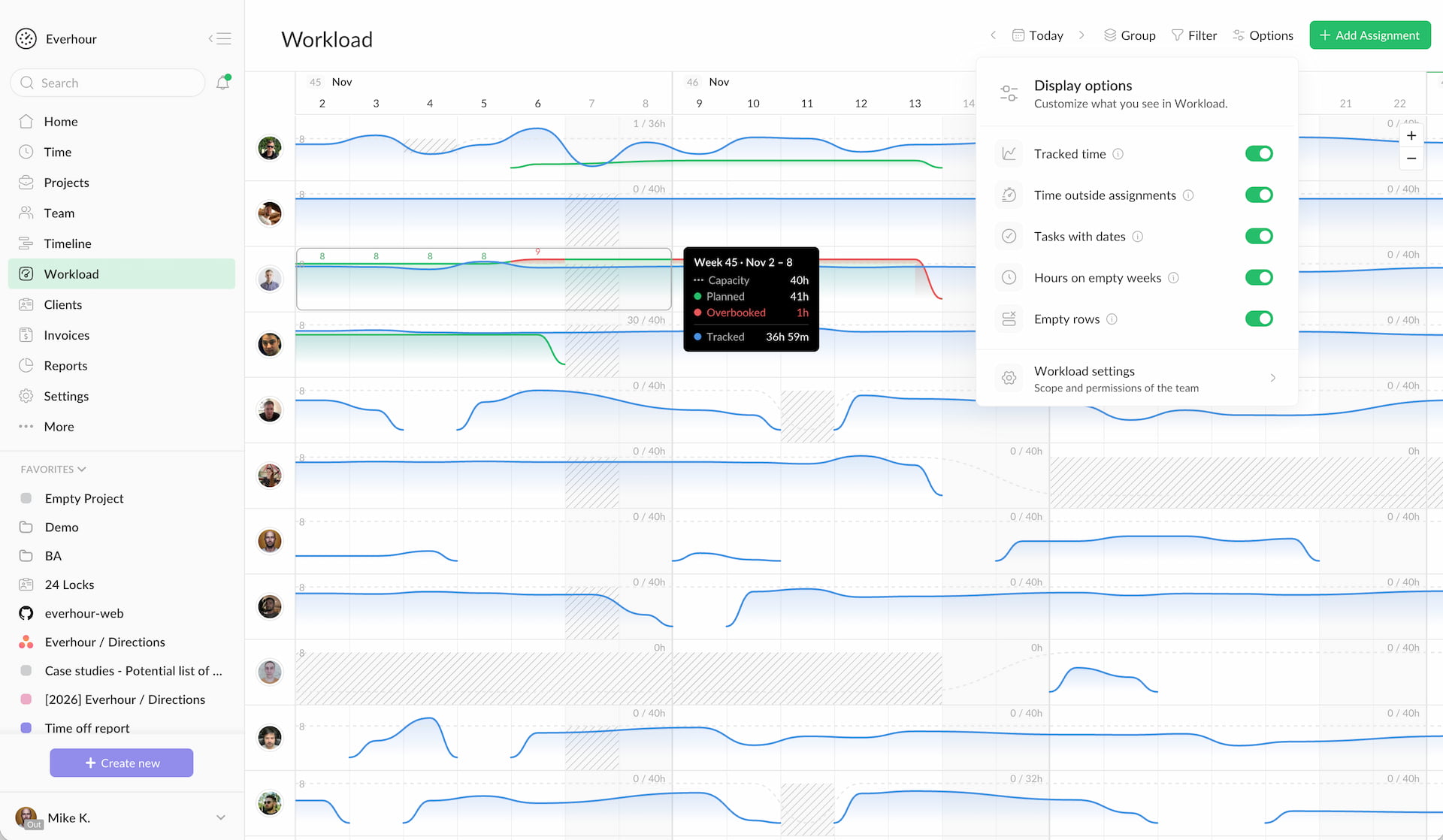
For members, the chart is drawn against their capacity, the working hours per day. Time off is hatched and takes those days out of capacity. When the planned hours of a day go above capacity, the line turns red.
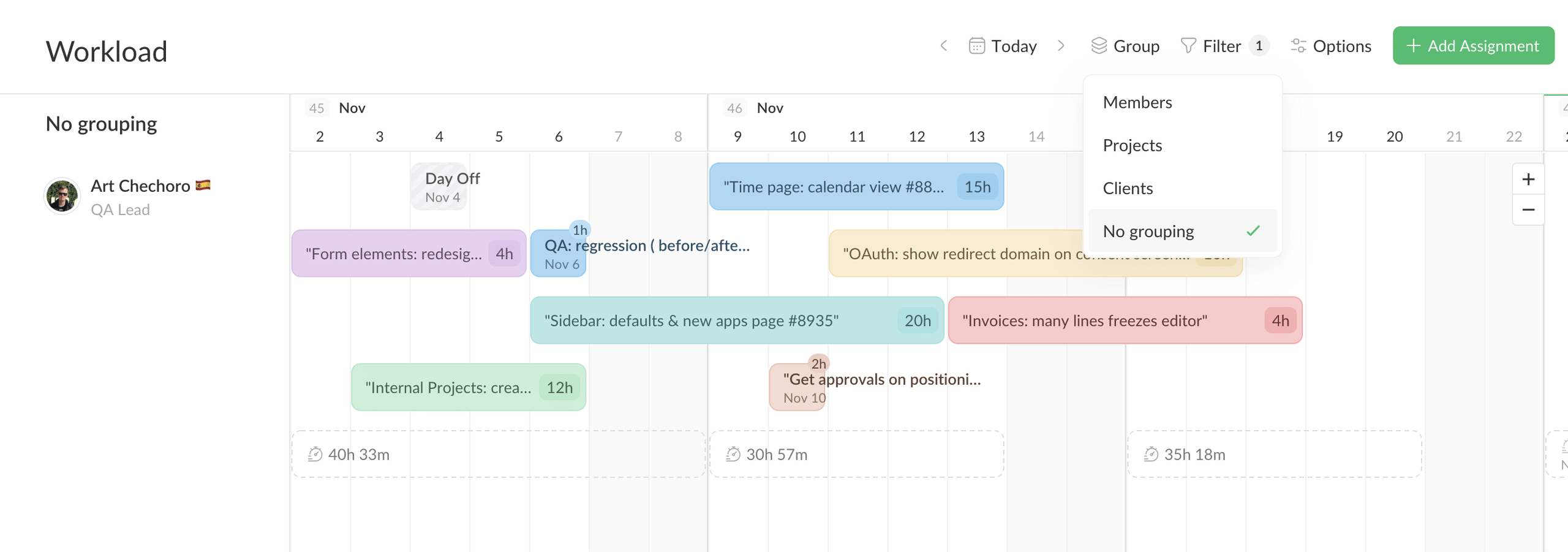
You can change the grouping or turn it off in the Group menu: by members, projects or clients, or No grouping for a flat list of members with all their assignments open.
The Options menu is just as important. It decides what the page shows. If something isn’t useful for you or feels unfamiliar, just turn it off there.
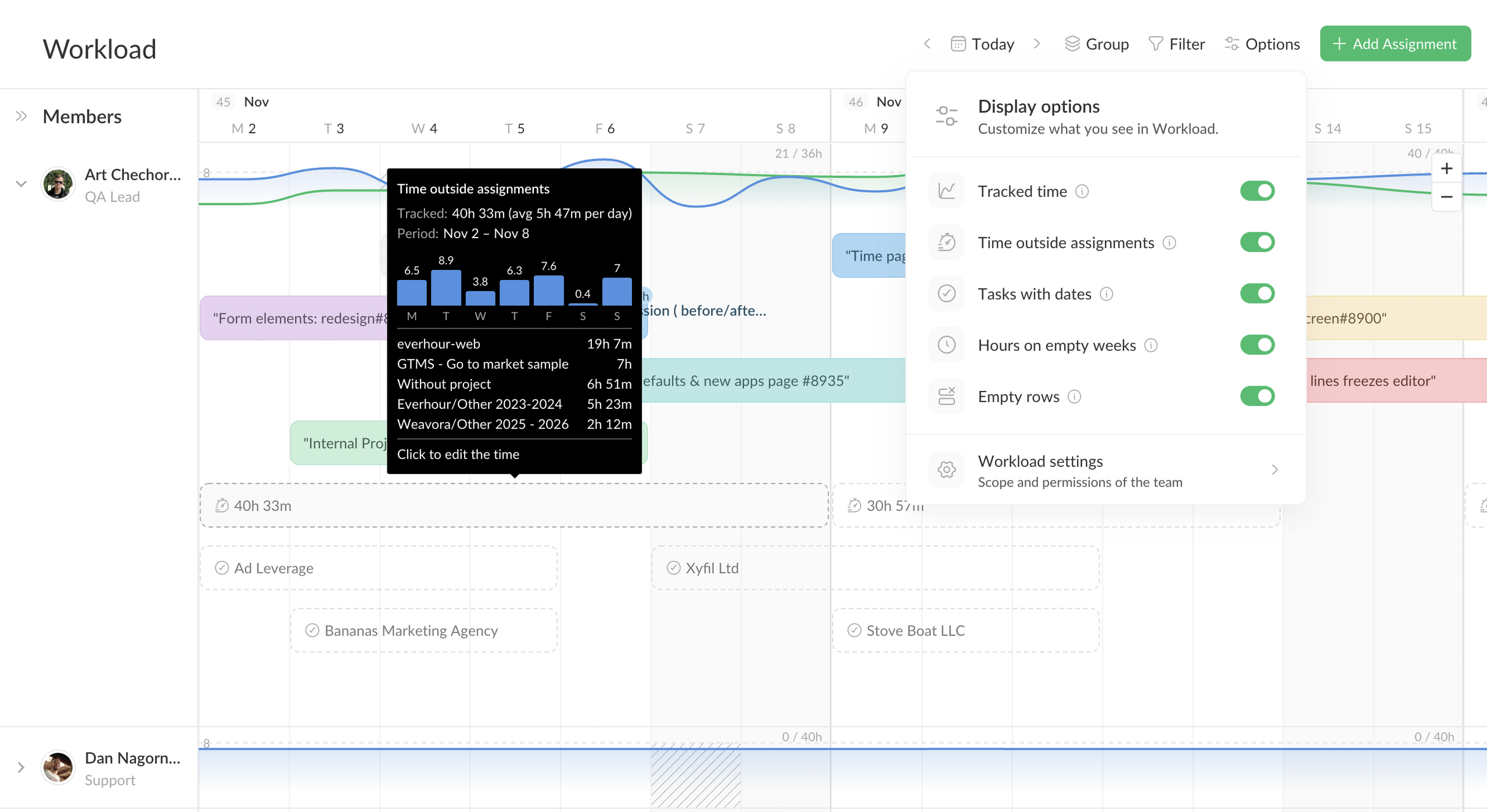
- Tracked time – the blue line of tracked hours on the charts.
- Time outside assignments – dashed blocks with time people tracked on something they had no assignment for.
- Tasks with dates – dashed blocks for tasks that have dates but aren’t planned.
- Hours on empty weeks – 0h on weeks with nothing planned.
- Empty rows – members, projects and clients with nothing planned.
- Budgets – for project and client next to its name, if allowed to see.
Easier to move around
- Scroll between weeks with your mouse wheel or trackpad.
- Zoom with the + and – buttons in the corner of the grid.
- Each week now shows its number next to the month.
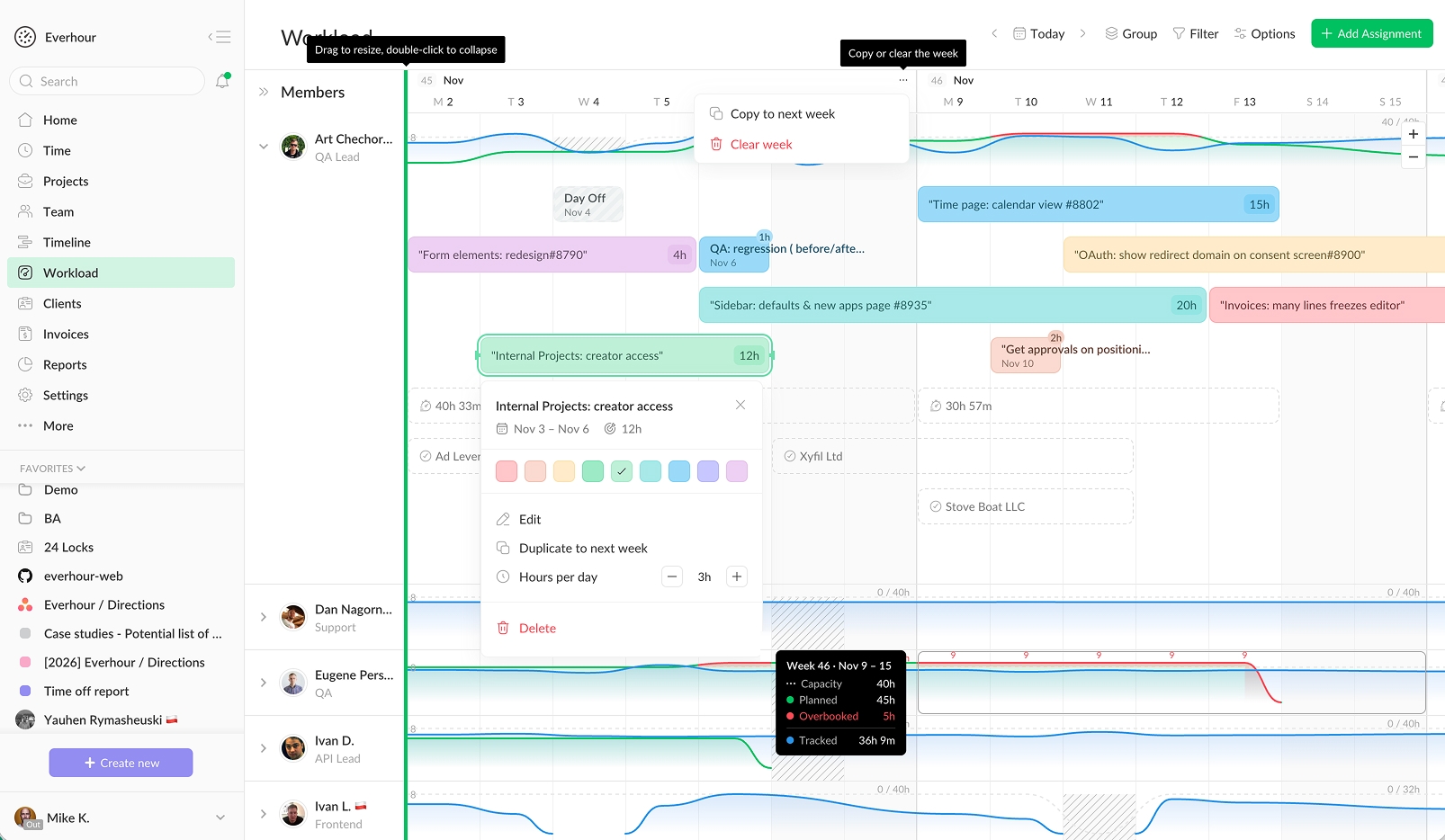
- The column with members’ names can be dragged wider or narrower to fit your screen; double-click its edge to collapse it to avatars.
- Tooltips tell more than before.
- The Create Assignment window is new: pick a task, a project, a client, time off or a plain text note, then members, the period and hours per day or in total.
- Assignments can now be dragged between rows.
- Hold Alt while dragging to make a copy instead of moving it.
- Click an assignment to open a short menu: change its color in one click, duplicate it to the next week, change hours per day, edit or delete it.
- To repeat a whole week, open the menu next to the week’s dates and copy all its assignments to the next week, or clear the week.
Filters
Filters moved to their own Filter button. You can filter by members, team groups, projects, clients and time off types, with the same dropdowns you know from the rest of Everhour. The number on the button shows how many filters are set, and Clear all resets their values in one click.
Timeline
Timeline now has the same toolbar, zoom and navigation as Workload.
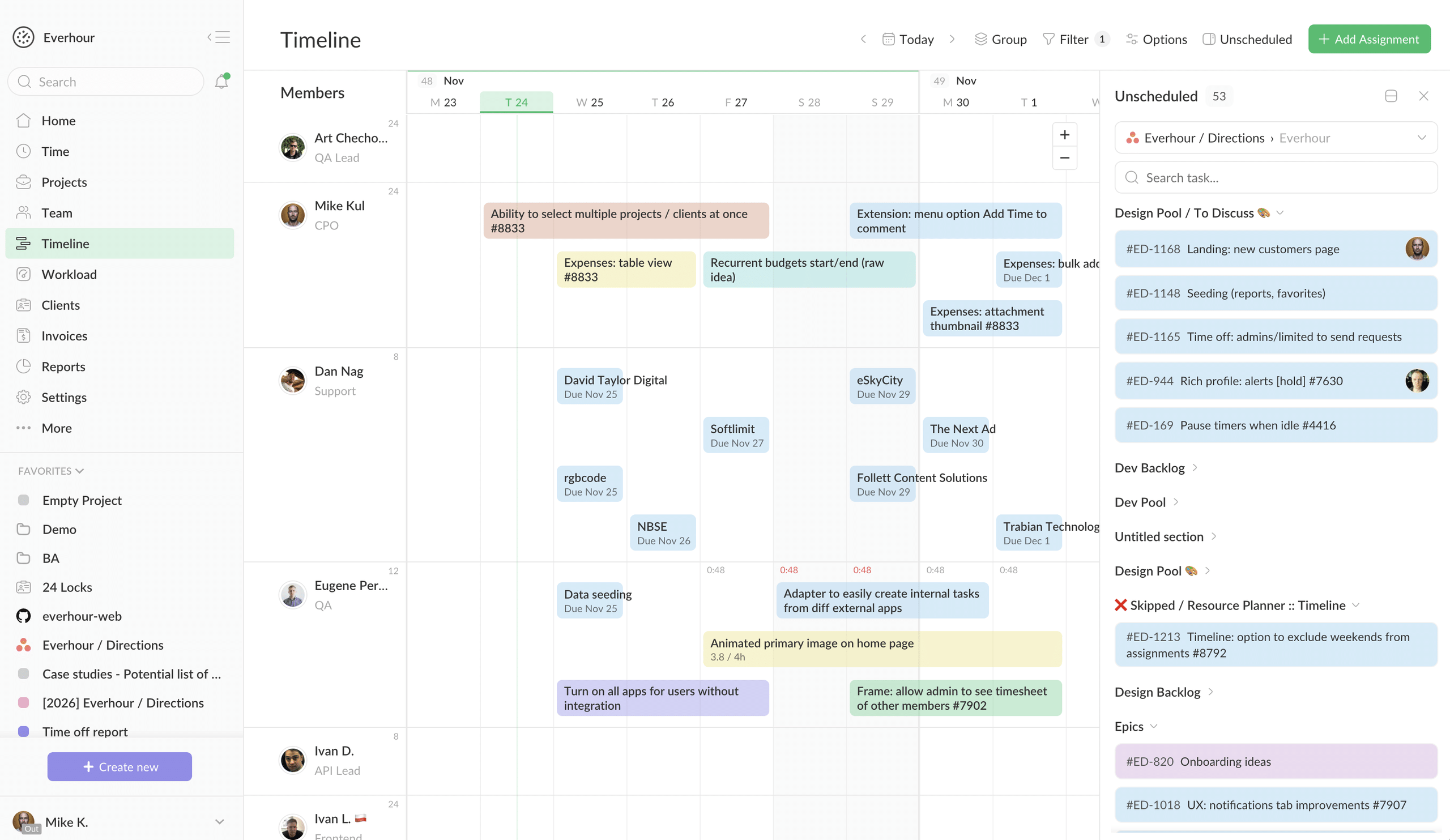
The Unscheduled panel lists the tasks of a project that have no dates yet, by sections, with their estimates and with subtasks under their parent. Drag a task onto a day to give it dates.
In Options, Daily planned time shows each task’s estimate split equally between its days, so you see how many hours of estimates a member has on each day.
Future planned time shows the hours planned from today on next to each name.
Skip non-working days splits the estimate only between working days, without weekends and days off. You can also show completed tasks, budgets, rows with nothing planned, and the time members tracked to tasks that have no dates.
Time off has its own row. Collapse it to one line to see who is away on each day.
Try it and tell us what you think
A new layout takes some getting used to, and we may have missed a case that matters to you. If something works worse for you than before, write to us: what you were trying to do and what got in the way. Specific examples help us fix it faster.

Mike
An IT entrepreneur, executive, and former engineer with a passion for innovation and leadership. Mike focuses on driving company growth while keeping the team inspired. Outside of work, he enjoys tennis, snowboarding, traveling, reading, and, of course, putting his heart and soul into Everhour.